Teams
A team is the shared space for the people you work with. It holds the projects and the members who may work on them. You can belong to several teams.
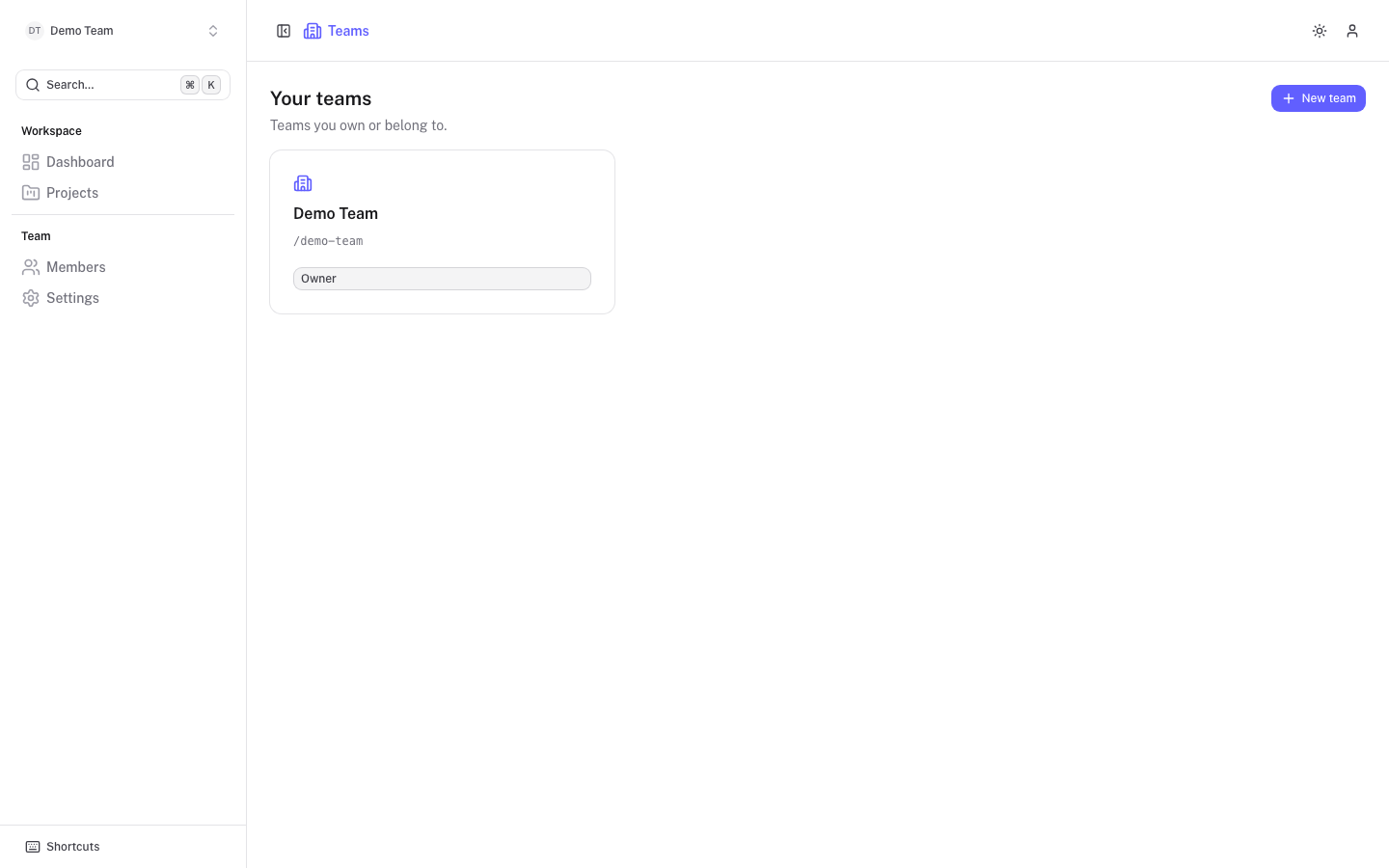
Your teams
Choose Teams in the breadcrumb, or All teams in the team switcher at the top of the sidebar, to open Your teams. Each card shows the team name, its slug and your role in it. Select a card to open the team. To switch quickly, use the team switcher.
Create a team
- On Your teams, select New team. If you have no teams yet, select Create team. Create team is also in the team switcher.
- Enter a Team name.
- Select Create team.
You become the owner of the new team. A slug is generated from the name.
Team overview
The Dashboard shows how the whole team is doing.
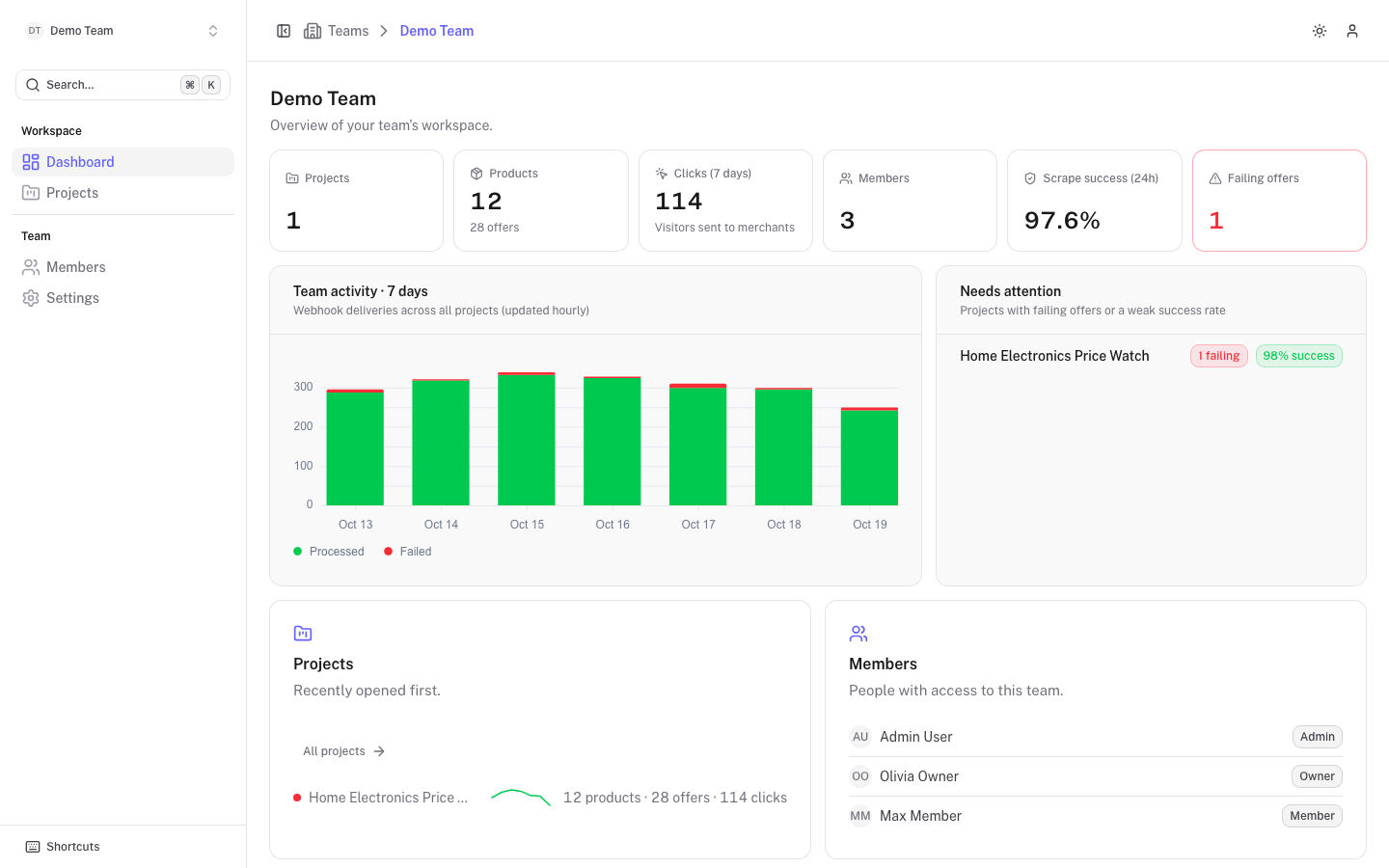
- The top row counts Projects, Products (with the number of offers), Clicks (7 days), Members, Scrape success (24h) and Failing offers.
- Team activity · 7 days charts webhook deliveries across all projects, processed and failed, updated hourly.
- Needs attention lists projects with failing offers or a weak success rate. Select one to see its failing offers.
- Projects lists recently opened projects first, and Members shows who has access.
Team settings
Open Settings under Team in the sidebar.
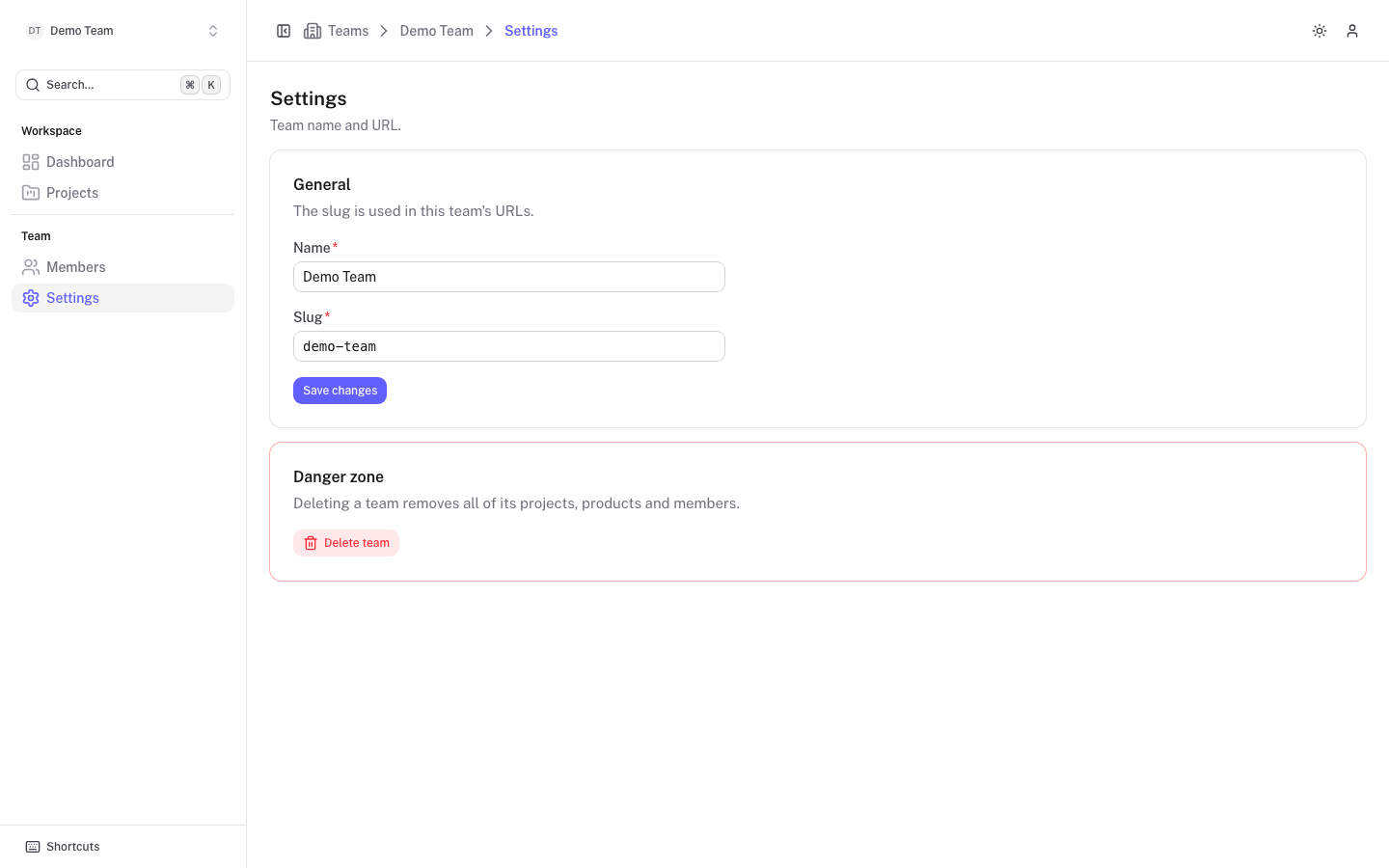
Under General you can change the team Name and Slug. The slug is used in the team's web addresses: lowercase letters, numbers and single dashes, 2 to 48 characters. Select Save changes.
Delete a team
Owners see a Danger zone with Delete team.