Scrape profiles
A scrape profile describes how to read price, stock and other values from a shop's product pages. Each merchant uses one profile, and a profile can be shared by several merchants. Profiles are written in Scrape Admin's profile format, and the platform keeps them in sync with the connected Scrape Admin team.
Open Profiles in the project sidebar. Writing and saving profiles needs admin access. Members can open them, validate and test-run drafts, but not save.
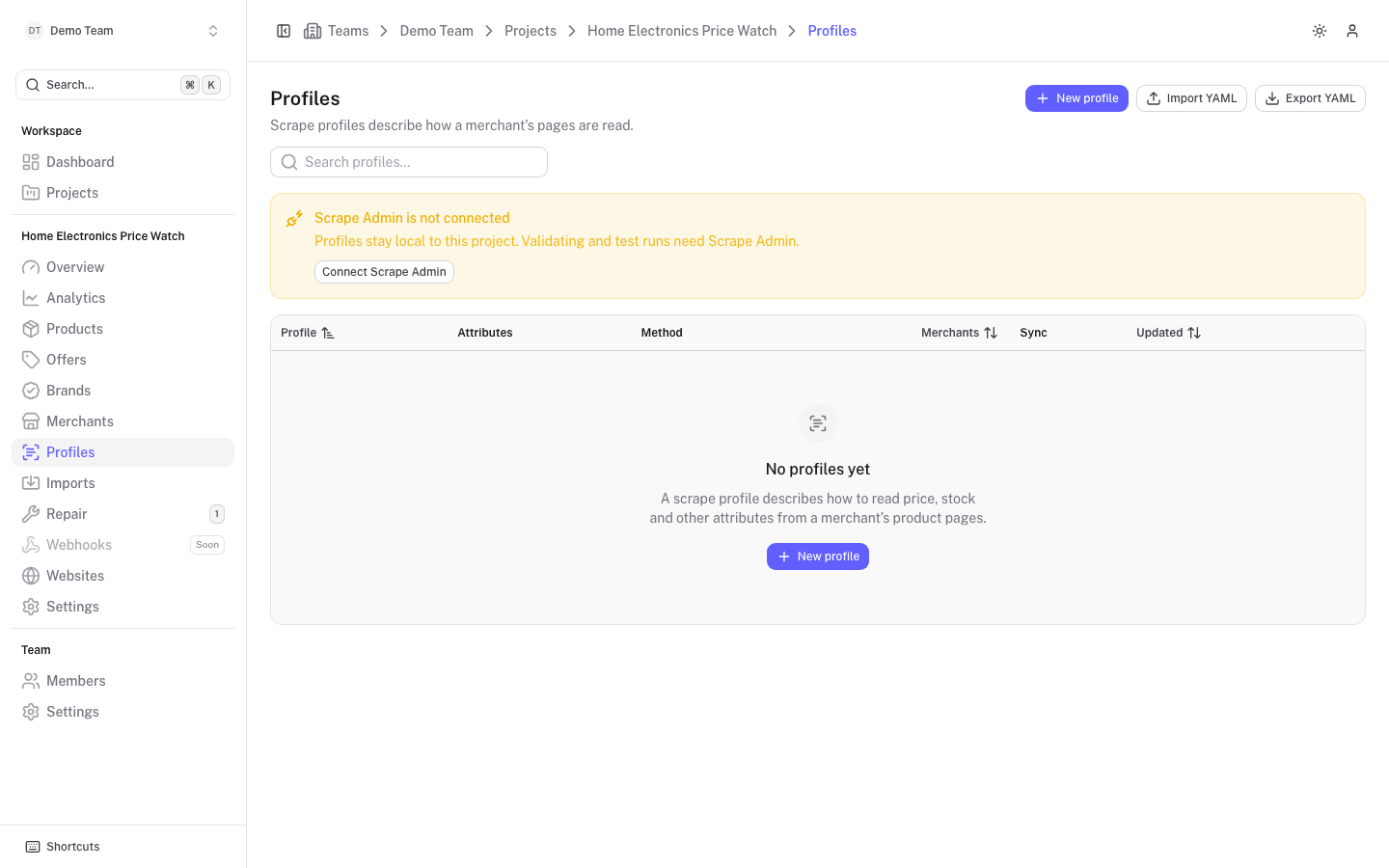
The profile list
The table shows Profile, Attributes (the values it extracts), Method, Merchants (how many merchants use it), Sync and Updated. Search profiles... matches name, description and attribute names.
The Sync column shows one of:
| Badge | Meaning |
|---|---|
| Local only | Scrape Admin is not connected. |
| Not synced | Not pushed to Scrape Admin yet. |
| Synced | In step with Scrape Admin. |
| Sync failed | The last sync failed. Hover for the error. |
| Conflict | Changed here and in Scrape Admin since the last sync. |
If Scrape Admin is not connected, a warning says that profiles stay local and that validating and test runs need it, with a Connect Scrape Admin button, see Connect Scrape Admin.
The ... menu on a row has Open, Sync with Scrape Admin (when connected) and Delete. A profile that merchants still use cannot be deleted. When connected, deleting also removes it from Scrape Admin.
Create a profile
Click New profile. The editor is also a playground: you can build and test a profile before saving it.
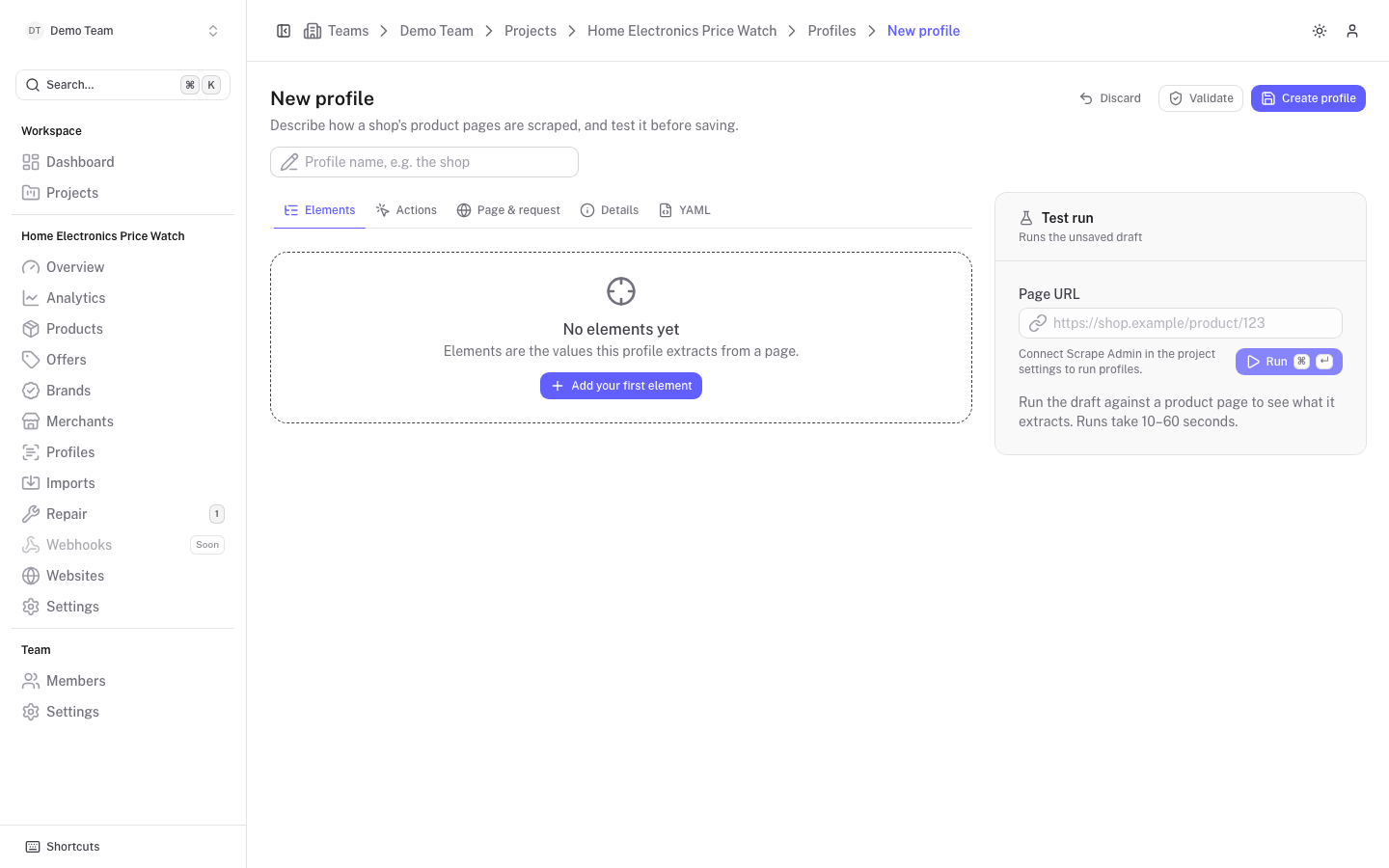
Name it
Type a name in the Profile name field, for example the shop's name.
Describe the values to extract
Under Elements, click Add your first element for each value to read from a page, such as the price. Elements for custom fields are named product.<key>, see Custom attributes. The other tabs are Actions (steps to run before or after reading), Page & request (URL patterns, request settings, browser and blocking), Details (description and internal note) and YAML (the whole profile as text).
Test it
In the Test run panel, enter a Page URL and click Run. It runs the unsaved draft in Scrape Admin and shows what was extracted, typically within 10 to 60 seconds. This requires a connection and at least member access.
Validate and save
Validate asks Scrape Admin whether it can save and run the draft, and lists any problems. Then click Create profile. If Scrape Admin rejects the profile, the problems are listed above the editor and nothing is saved.
On the Page & request tab, the Browser setting chooses the Scrape Admin browser used to render pages, and only applies to profiles that use the browser method. A merchant can override it.
The editor warns before you leave with unsaved changes. Discard goes back to the last saved version, and Ctrl+S or Cmd+S saves.
Import and export
- Export YAML downloads the project's profiles.
- Import YAML opens Import profiles. Paste YAML or JSON or choose a file. One profile, a list, or a profiles list is accepted. The Mode is Upsert by name (updates existing profiles, creates the rest) or Create only (skips profiles whose name already exists). The result lists what was created, updated, skipped and failed.
- Import from Scrape Admin (only when connected) lists profiles in the connected Scrape Admin team that no profile here is linked to. Select some and click Import. Imported profiles stay linked and sync both ways. You can import at most 25 profiles per import.
Sync with Scrape Admin
Saving a profile pushes it to Scrape Admin when connected. If that push fails you get a "Saved, but the Scrape Admin sync failed" warning, and the profile's Details tab offers Retry sync.
- Sync all on the list syncs every profile in both directions: it pulls changes made in Scrape Admin, pushes local changes and creates missing ones.
- A profile edited on both sides is left as a conflict. Open it and, on the Details tab, choose Keep this version (replaces the Scrape Admin changes) or Use Scrape Admin version (replaces your local changes).
The Details tab also shows the sync status, the Scrape Admin id, when it was synced and which merchants use the profile. For bulk syncing of everything, see Sync and reconcile.