Account
Your account is personal and works across all the teams you belong to. This page covers signing in and the account pages you reach from the user icon at the top right.
Sign in
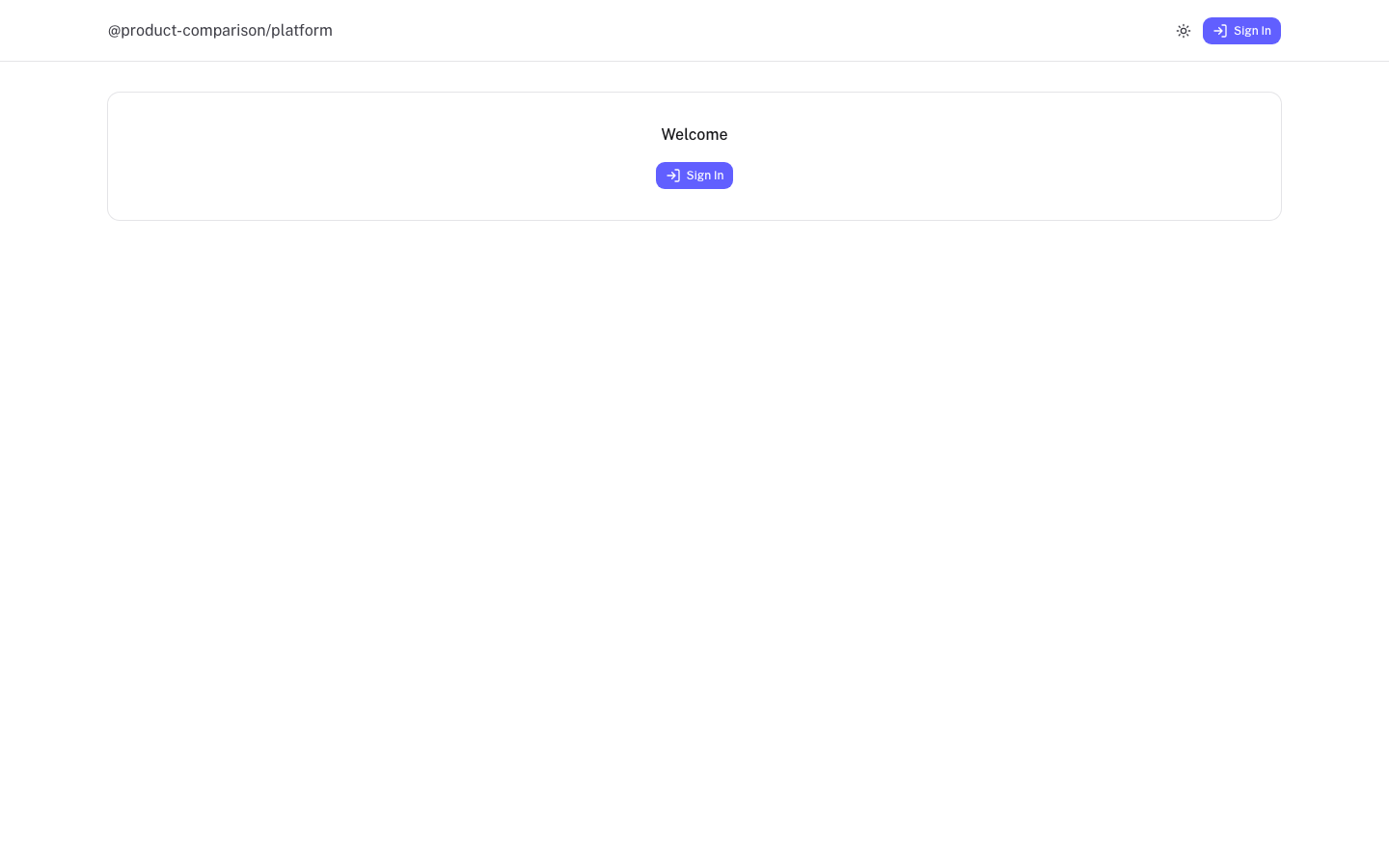
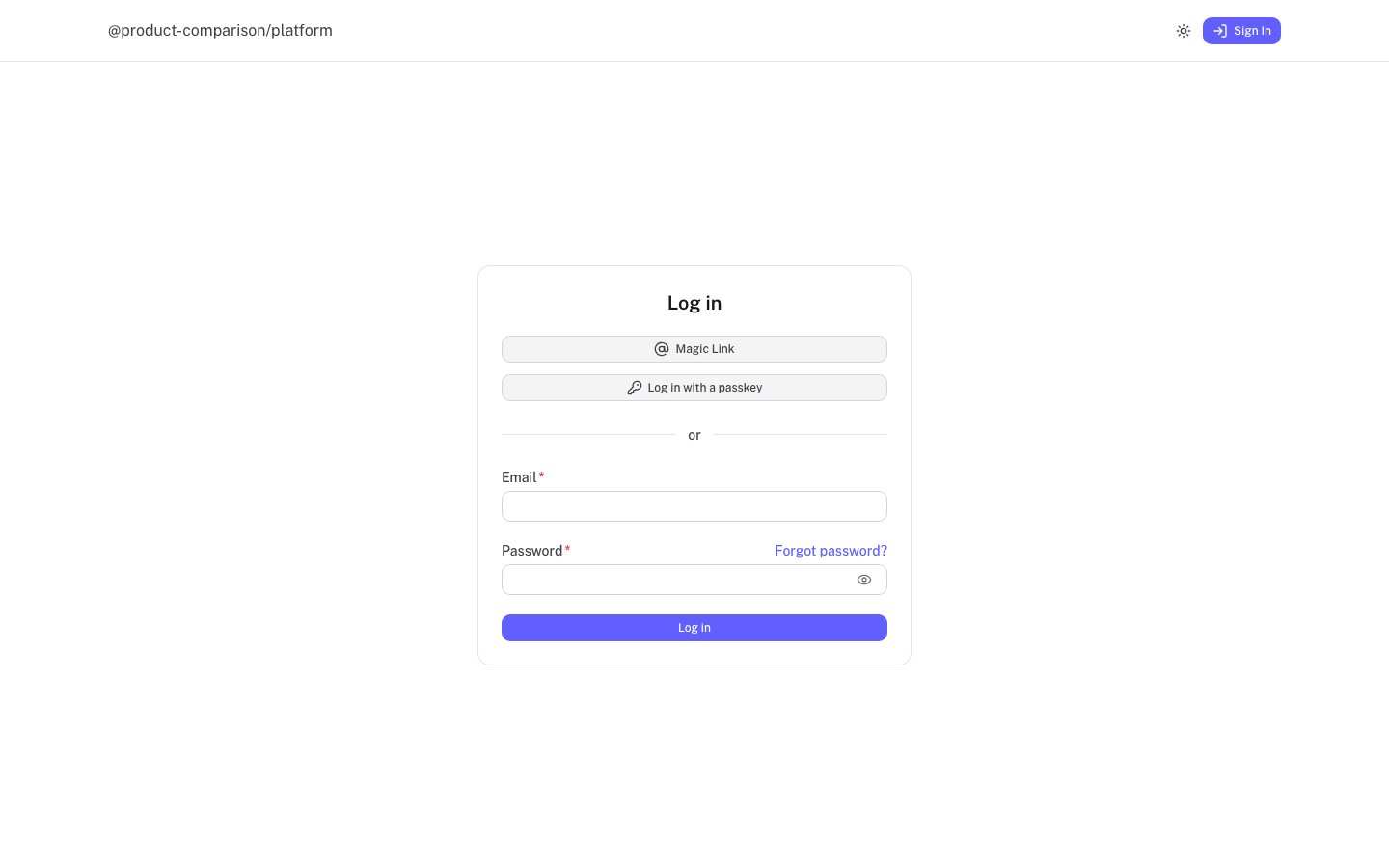
Open the platform and select Sign In. On the Log in page you can use any of these:
- Email and password. Enter both and select Log in. Use Forgot password? if you need to reset it.
- Magic Link. Sign in with a link sent to your email.
- Log in with a passkey. Use your fingerprint, face or device PIN instead of a password.
Profile
Open the user icon at the top right and choose Account, then Profile.
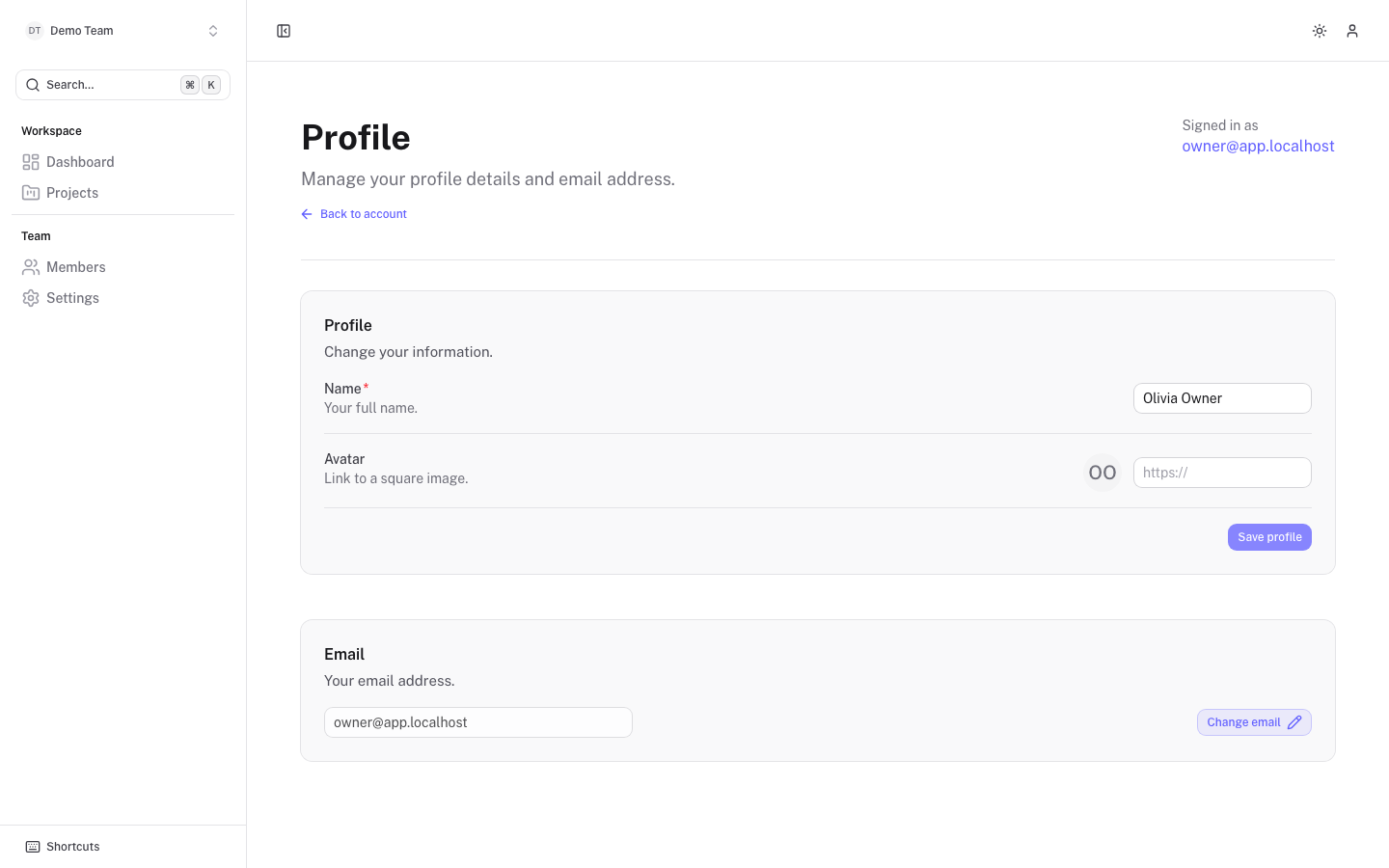
- Name is your full name, shown to your colleagues in member lists.
- Avatar is a link to a square image. Leave it empty to use your initials.
- Select Save profile to store changes.
- Email shows your current address. Select Change email and enter the new address. If a confirmation is required, you get a message at the new address and the change takes effect once you confirm it.
Security
The Security page lets you change your password and manage passkeys.
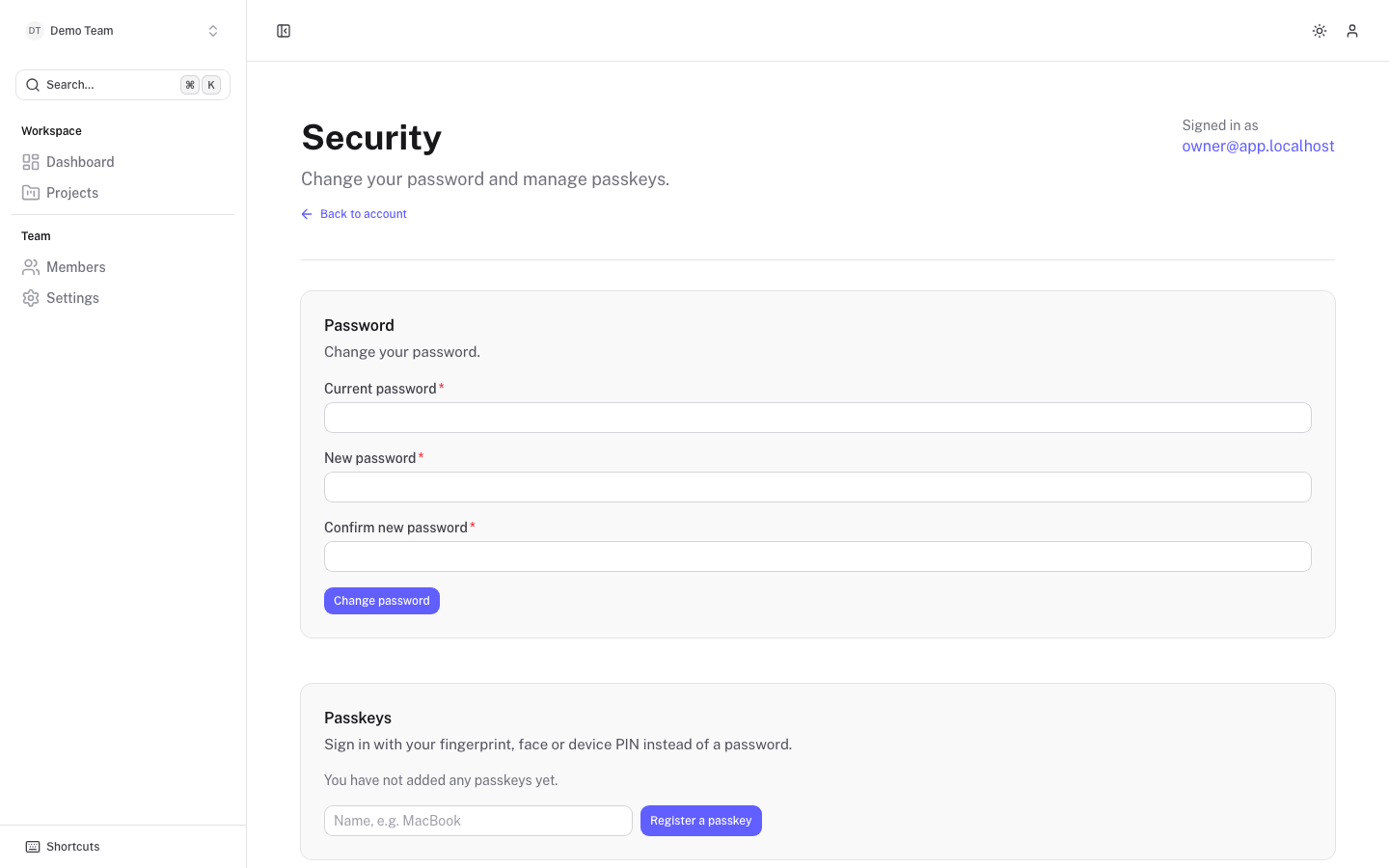
To change your password:
- Enter your Current password.
- Enter a New password of at least 8 characters and repeat it under Confirm new password.
- Select Change password.
To add a passkey, type a name such as the device name and select Register a passkey. Passkeys you have added are listed there, and each can be removed.
API tokens
The API tokens page creates tokens for scripts and tools, such as AI assistants, that act on your behalf.
- Enter a Name.
- Choose the Scopes the token may use. Give each token only what it needs.
- Choose when it Expires: 30 days, 90 days, 1 year or no expiry.
- Select Create token.
Your tokens are listed under Your tokens. Revoke a token to stop it working immediately.