Projects
A project is one comparison catalogue inside a team. It groups the brands, merchants, products and offers you compare, and has its own settings and websites.
The projects list
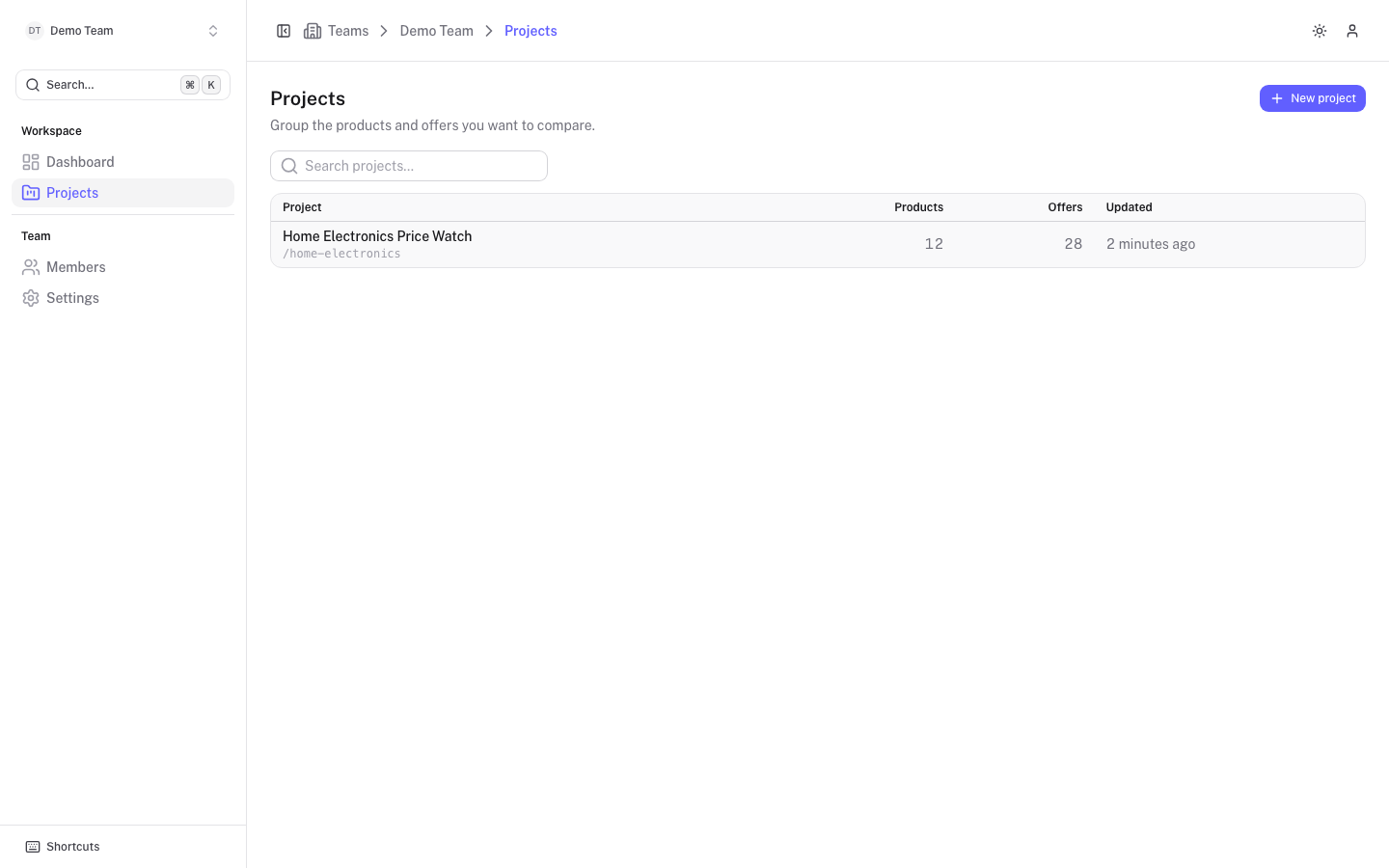
Open Projects in the sidebar. The table shows each project with its slug, number of Products and Offers, and when it was Updated. Use Search projects to filter by name or slug, and select a row to open the project.
Create a project
Only admins and owners see New project.
- Select New project.
- Fill in the form and select Create project.
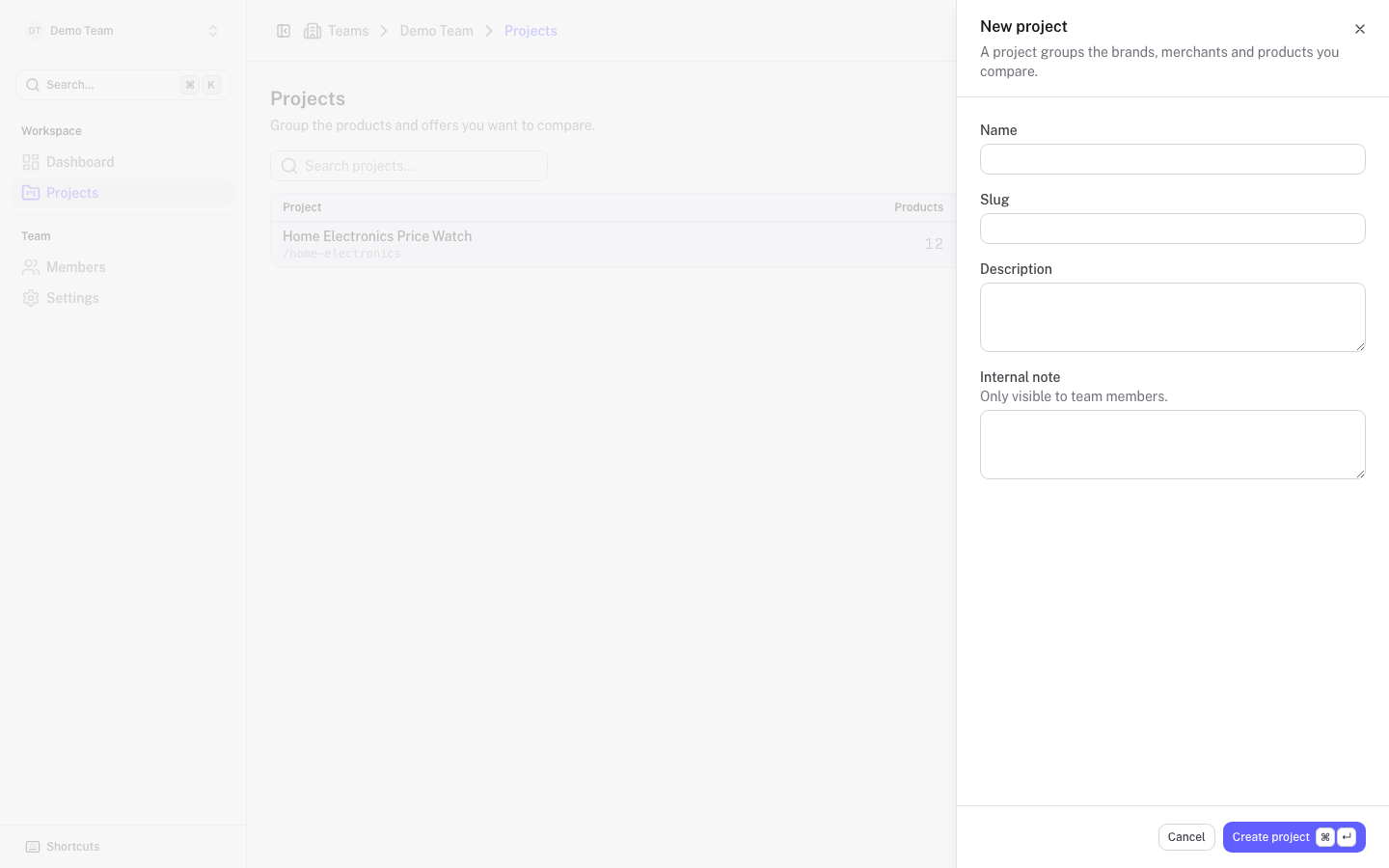
| Field | What to enter |
|---|---|
| Name | The project's name. Required. |
| Slug | Used in the project's web addresses. Lowercase letters, numbers and dashes. Leave empty to generate it from the name. |
| Description | A short text, shown under the project name. |
| Internal note | Only visible to team members. |
The base currency, languages and other settings can be changed afterwards under the project's Configuration tab.
Project dashboard
Selecting a project opens its Overview. The sidebar then shows the project's sections: Analytics, Products, Offers, Brands, Merchants, Profiles, Imports, Repair, Websites and Settings.
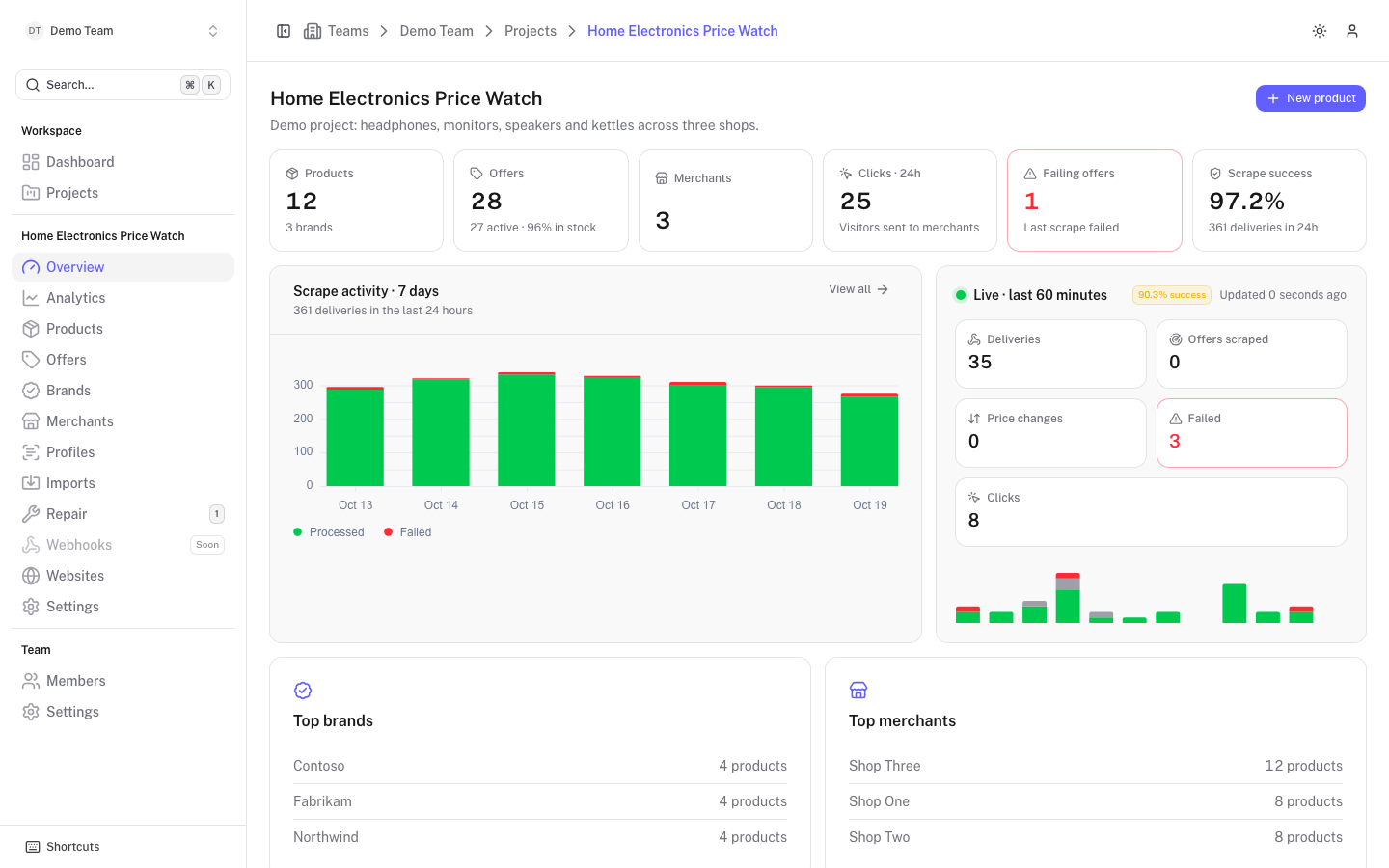
- The top row counts Products (and brands), Offers (active and in stock share), Merchants, Clicks · 24h, Failing offers and Scrape success. Select a card to open the matching list.
- Scrape activity · 7 days charts processed and failed deliveries. Live · last 60 minutes shows recent deliveries, scraped offers, price changes, failures and clicks.
- Top brands and Top merchants rank by number of products, and Newest products lists the latest additions.
- If the project has a red note, it shows at the top as Important note, and the internal note appears as Internal note.
- New product is available to members, admins and owners.
General settings
Open Settings, then the General tab. Other tabs cover Configuration, SEO, Custom fields, Scrape Admin and Sync. See Connect Scrape Admin, Schedules and configuration, SEO templates and Custom attributes.
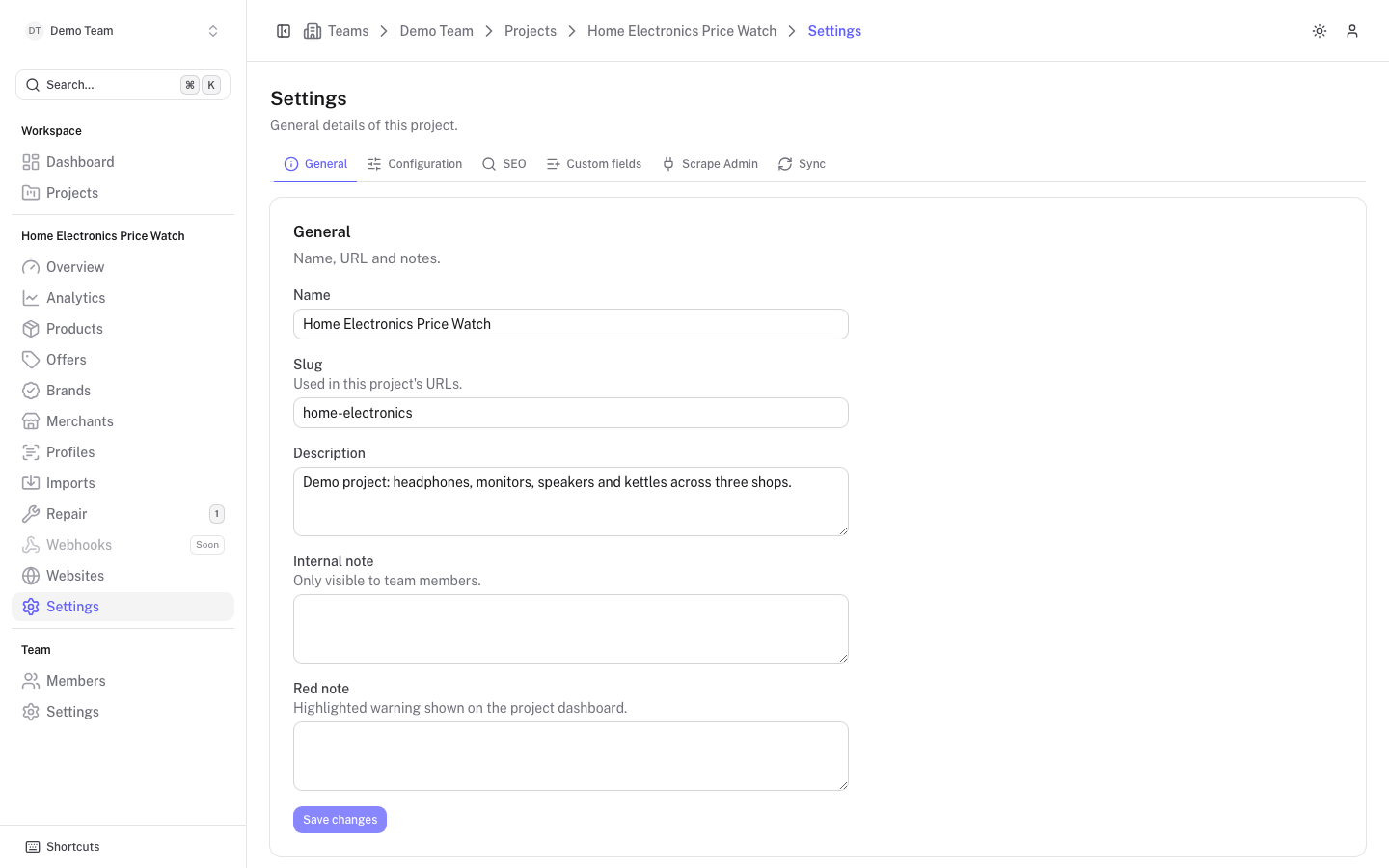
On General you can edit:
- Name and Slug. Changing the slug changes the project's web addresses.
- Description.
- Internal note, only visible to team members.
- Red note, a highlighted warning shown on the project dashboard.
Select Save changes when done. Only admins and owners can change project settings.
Delete a project
Owners see a Danger zone with Delete project.