Offers
An offer is one shop's listing of a product: a URL, a price and stock. Offers are scraped on a schedule, and every result updates the price and adds a point to the price history. The Offers page lists every offer in the project and is the place to find out what is failing and why. To add an offer, open a product and click Add offer, see Products.
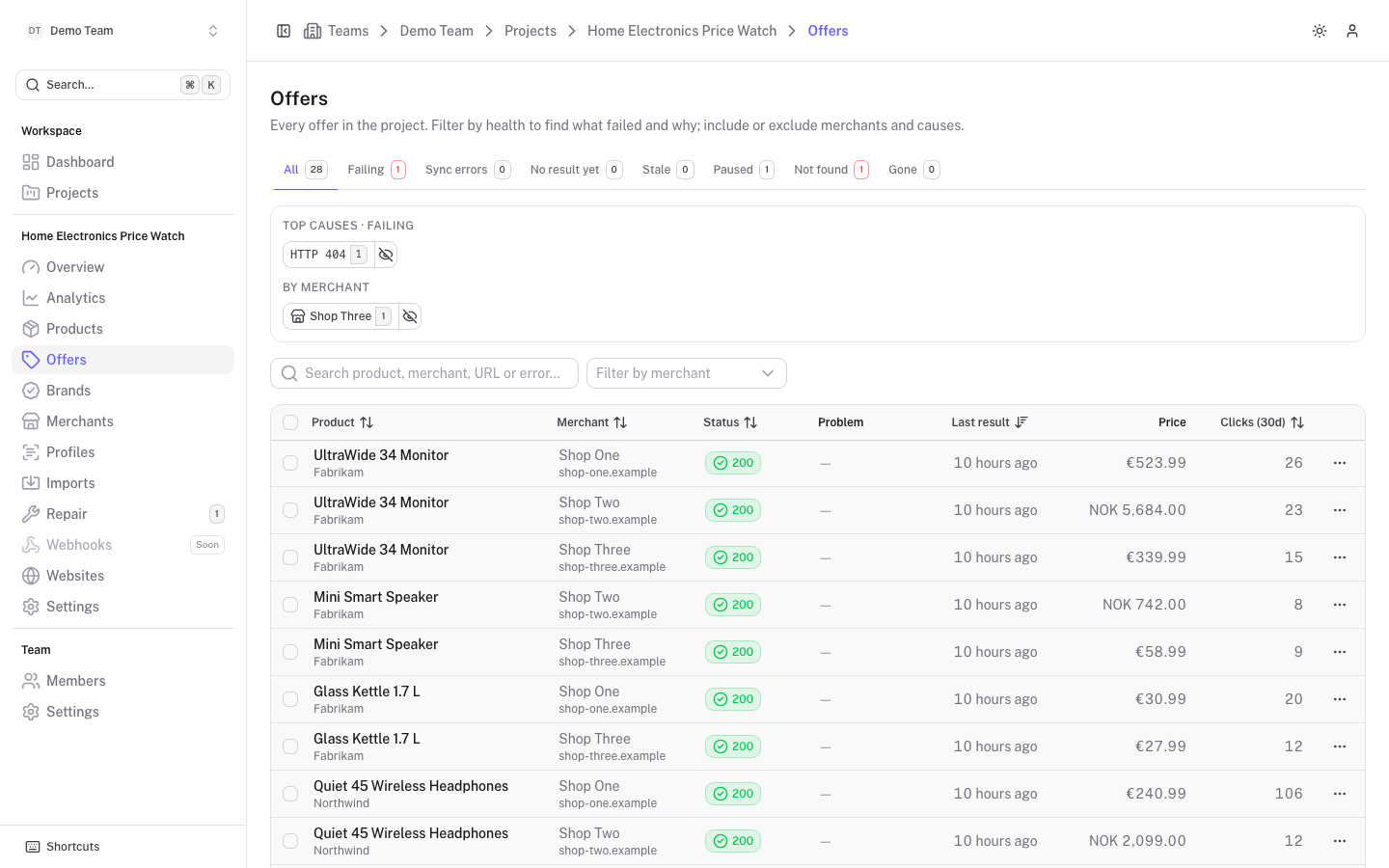
The offers list
The tabs at the top split offers by health, each with a count:
| Tab | Meaning |
|---|---|
| All | Every offer. |
| Failing | The last scrape errored or the page returned a non-2xx status. |
| Sync errors | The offer could not be pushed to Scrape Admin. |
| No result yet | Active, but no scrape result has arrived yet. |
| Stale | Active, but no result in the last 7 days. Runs failing inside Scrape Admin never send a webhook. |
| Paused | Inactive: paused by hand, or deactivated by a scrape result. |
| Not found | The page answered 404 or 410, so the URL is probably wrong. |
| Gone | Marked as no longer sold at the merchant: paused, but kept for its history. |
The Not found and Gone tabs link to Open Repair, see Repair queues and Wrong URL flow.
Below the tabs, a Top causes panel groups failing offers by HTTP status or error text, and By merchant groups them by shop. Click a chip to filter to it, or its eye icon to exclude it. Excluded filters appear as red "Not ..." badges. Use Clear filters to start over.
You can also search (Search product, merchant, URL or error...) and use Filter by merchant.
The table shows Product, Merchant, Status, Problem, Last result, Price and Clicks (30d). The status is the HTTP code of the last run, or inactive, pending or error.
Active, inactive and gone
An active offer is scraped on its schedule. An inactive offer is not scraped, but keeps its price history; you can switch it back on at any time. A scrape result can also deactivate an offer, depending on the status codes configured in Schedules and configuration. Gone is a step further: the wrong-URL flow marks an offer as gone when the product is no longer sold, which also pauses it and takes it out of every repair queue.
Bulk actions
Select rows with the checkboxes (write access needed) to get a bar with Refresh selected, Activate, Deactivate and Clear selection. Deactivating asks for confirmation. Refresh selected only appears when Scrape Admin is connected, and handles up to 100 offers at a time. Disabled offers and offers of deprecated products or merchants are skipped.
The offer page
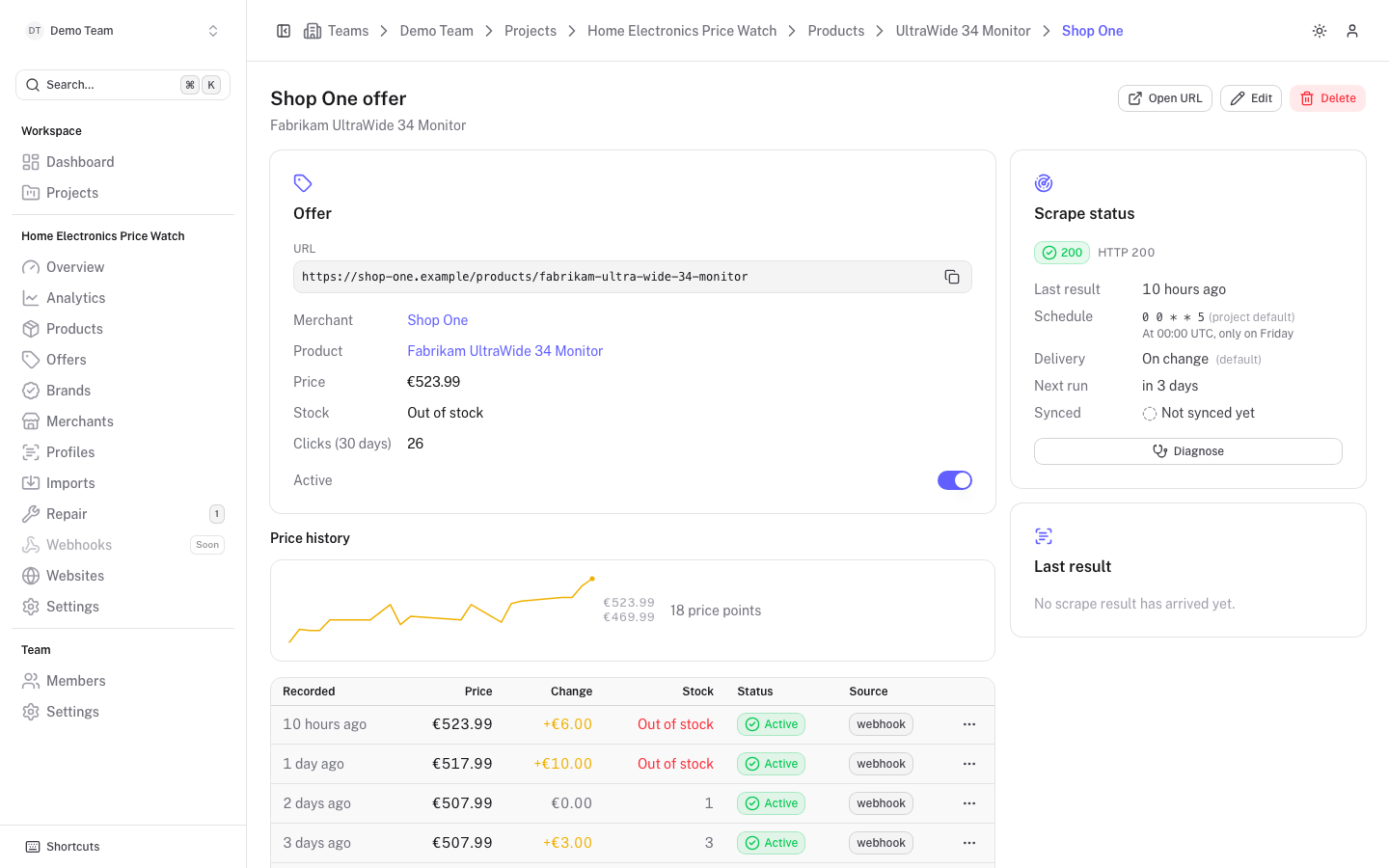
The left side shows the URL, merchant, product, price, stock, clicks and the Active switch, followed by custom fields and the price history. The right side has a Scrape status card (status code, last result, schedule, delivery mode, next run and whether the offer is linked to Scrape Admin) and a Last result card.
The buttons at the top are Refresh (when connected to Scrape Admin: syncs the offer and queues a run now; the result arrives shortly by webhook), Open URL, Edit and Delete. Deleting an offer also deletes its price history.
Diagnose
Click Diagnose on the Scrape status card. The dialog has these tabs:
- Diagnosis lists findings with a suggested next step, for example a blocked request, a page that was not found, or a value that could not be read from the page. It also shows the raw last result.
- Deliveries is the log of every scrape result Scrape Admin sent for this offer, see Webhooks.
- Scrape Admin shows live runs from Scrape Admin. It only appears when the project is connected, see Connect Scrape Admin.
Edit and schedule
Edit opens the offer form: URL, merchant (matched from the URL host, with a Change option), Price, Stock, and under Advanced a Schedule (cron; empty uses a project default), Webhook trigger, Active and Internal note. The webhook trigger decides when a scrape result is delivered: on change, on every run, or by custom code.
Price history
Every price change is recorded with the time, price, change, stock, status and source (for example webhook). Use the ... menu on a row:
- Correct price fixes a wrongly recorded price, currency or stock in place. Click Save correction. The original value is kept and the correction is logged in the product history. If it is the latest record, the offer's current price is updated too.
- Delete record removes a record that should never have been made. If it was the latest, the offer goes back to the record before it. The deletion is logged.