Merchants
A merchant is a shop that sells your products. Every offer belongs to one merchant, and the merchant decides how its offers are scraped: which scrape profile reads its pages and, optionally, which browser Scrape Admin uses. Open Merchants in the project sidebar to see them.
The merchant list
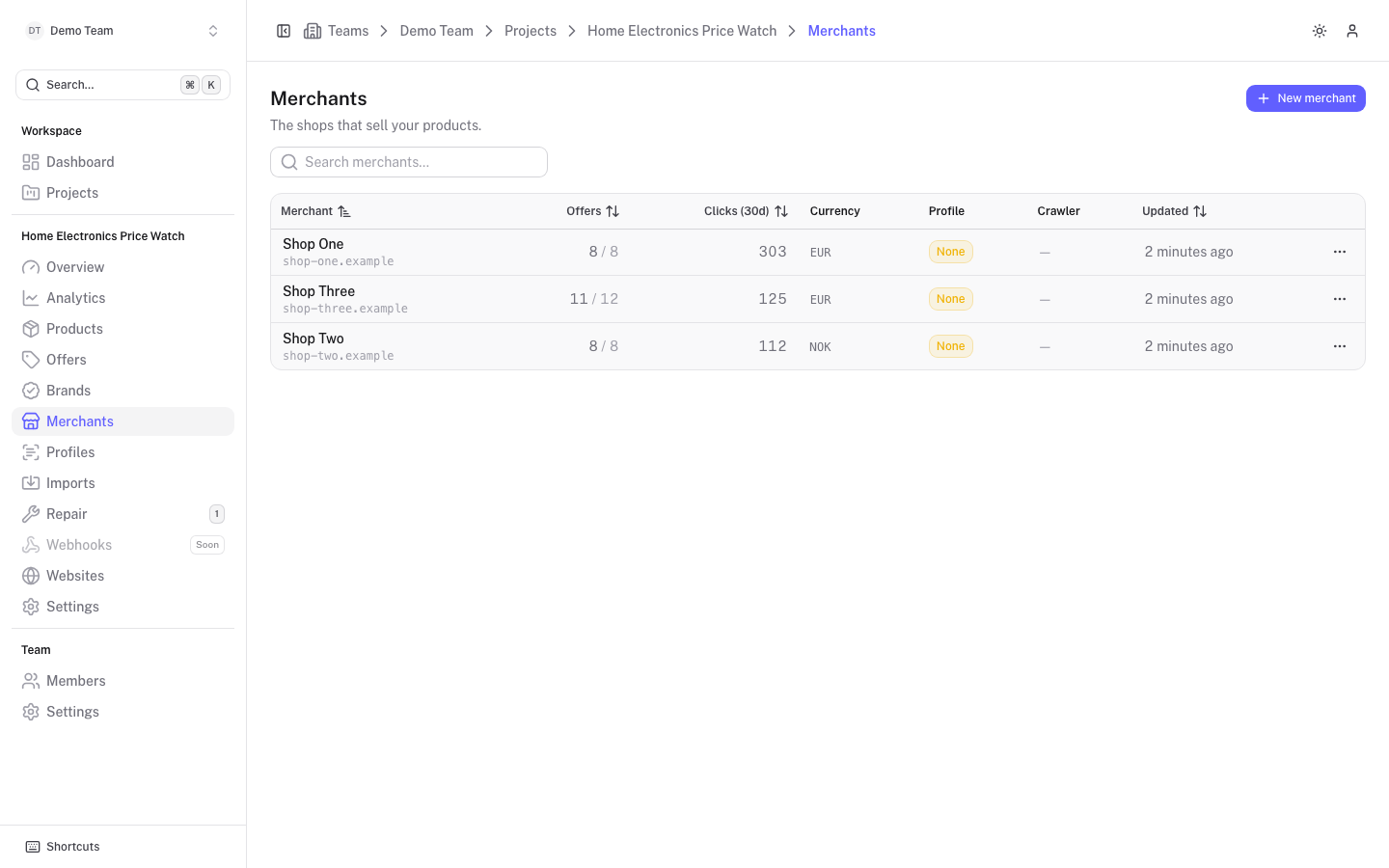
The table shows Merchant, Offers, Clicks (30d), Currency, Profile, Crawler and Updated. Use Search merchants... to find one. The ... menu on a row has Open, Visit website, and with write access Edit. Admins also get Merge into... and Delete.
Create a merchant
Click New merchant and fill in the form, then click Create merchant.
| Field | What it does |
|---|---|
| Website | The shop's address. Offers whose URL is on this host are matched to the merchant automatically. The name and slug are suggested from it. |
| Name | Required. |
| Slug | Generated from the name unless you type your own. |
| Currency | Default currency of the merchant's prices. Starts as the project's base currency. |
| Search URL | Optional. The shop's own search, with {query} where the search text goes, for example https://shop.example/search?q={query}. The repair flow opens it with a product title, see Wrong URL flow. |
| Link extractor | A pattern that extracts product links from listing pages. |
| Scrape profile | Optional. Offers of this merchant are only scraped when it has a profile. You can pick an existing one or choose Create profile. |
| Browser | Optional. A Scrape Admin browser for this merchant's pages. It overrides the profile's browser; From the profile keeps the profile's. Requires a connection, see Connect Scrape Admin. |
| Description, Internal note | Free text. The note is only visible to team members. |
When you edit a merchant you can also mark it Deprecated with a Deprecation reason, and fill in its custom attributes.
The merchant page
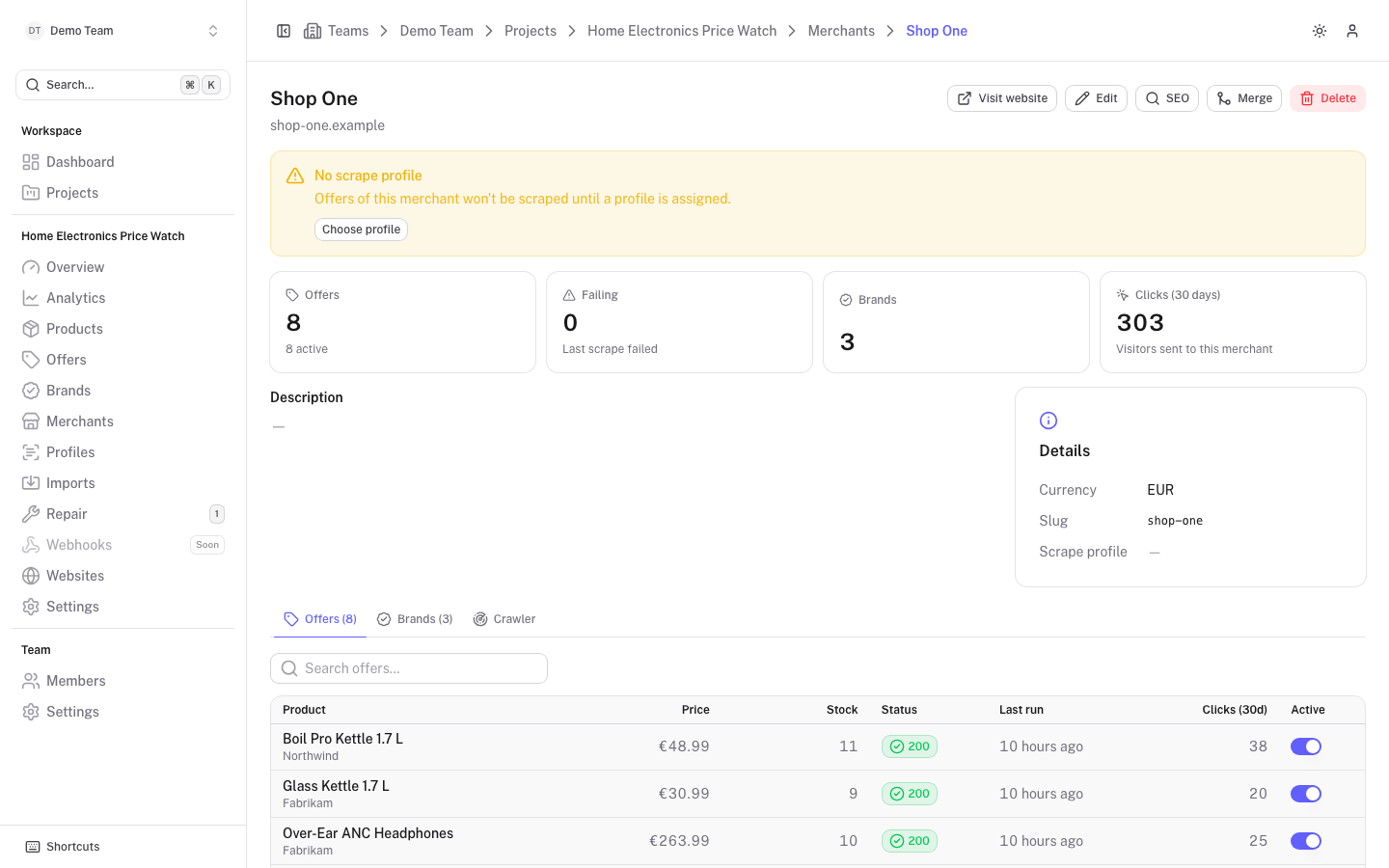
The top of the page shows the shop's host. If the merchant has no profile, a warning reads No scrape profile and offers a Choose profile button: until a profile is assigned, its offers will not be scraped.
Four cards summarise the merchant: Offers (with how many are active), Failing (links to the failing offers of this merchant), Brands and Clicks (30 days). The Details card shows the currency, slug and scrape profile, which links to the profile.
The tabs below are:
- Offers lists the merchant's offers with price, stock, status, last run and an Active switch. When Scrape Admin is connected you can refresh single offers from here.
- Brands lists the brands the merchant sells.
- Crawler sets up automatic discovery of new product URLs.
Buttons at the top: Visit website, Edit, SEO (see SEO templates) and, for admins, Merge and Delete. With Scrape Admin connected, extra sync actions cover all of the merchant's offers, see Sync and reconcile.
Crawler
A crawler reads the merchant's sitemaps, keeps the product URLs and queues the new ones in an import list named after the date and merchant. It needs the merchant's Website to be set. In the settings you can:
- choose the Sitemaps (leave empty to use the ones in robots.txt, or Detect them);
- narrow down with Include URLs and Exclude URLs, and limit New URLs per crawl;
- run a Preview, a dry run where nothing is queued;
- set the Schedule to Manual only, Daily or Weekly.
Click Crawl now at any time to run it by hand. The resulting lists are handled in Imports. Pause schedule and Remove crawler are in the panel's menu.
Merge and delete
Merge moves all offers of this merchant to another merchant and deletes this one. Where both shops already have an offer for the same product, the destination's offer is kept, its empty price and stock values are filled in, and the price history is moved over. Offers that were already synced may need a sync to be re-created in Scrape Admin. Merging cannot be undone.
Delete removes the merchant. If it has offers, they are deleted too, with their price history; the confirmation tells you how many.