Custom attributes
Custom attributes add your own structured data to the catalogue, such as a screen size on monitors or a material on kettles. They are called Custom fields in the interface. Each field belongs to one kind of record (products, brands, merchants or offers) and has a type, so values are validated every time they are saved.
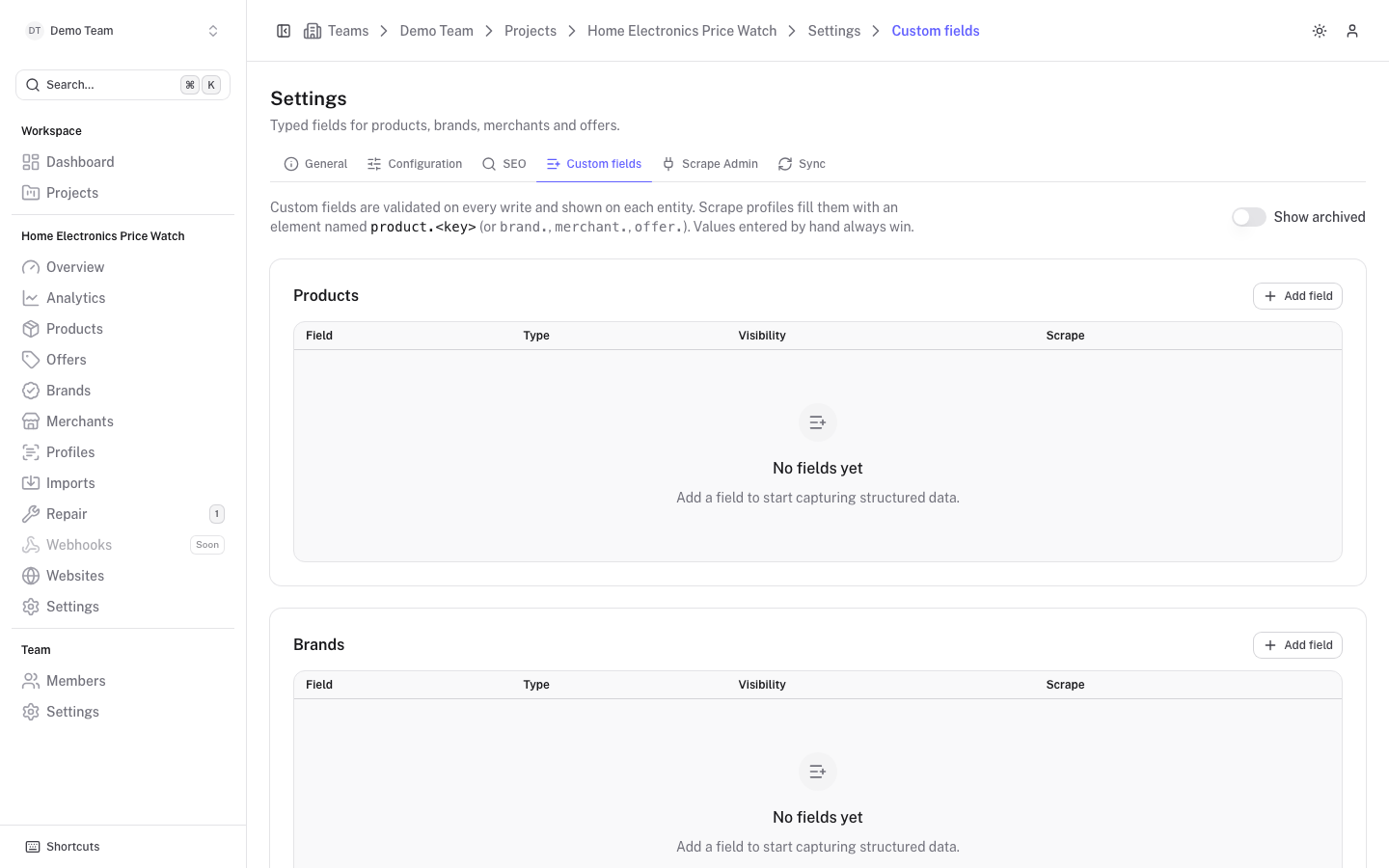
Fields are managed in Settings, on the Custom fields tab. Everyone on the project can see them, but adding, editing and archiving fields needs admin access.
Add a field
The page has one card per record kind: Products, Brands, Merchants and Offers. Click Add field in the card you want, fill in the form and click Create field.
| Setting | Notes |
|---|---|
| Entity | Product, Brand, Merchant or Offer. Cannot be changed afterwards. |
| Label | The name people see. |
| Key | Used by the API and by scrape profiles. It is suggested from the label and cannot be changed later. |
| Type | Number, Text, Yes / no, Select (fixed options) or URL. Cannot be changed later. |
| Description | Help text shown when editing. |
| Public | Public fields are served to the consumer website; private fields stay internal. |
| Scrape updates | How scrapes may write to the field, see below. |
Number fields have optional Unit, Decimals, Minimum and Maximum. Select fields have a list of Options, each with a value (stored and served by the API) and a label (shown to people).
The table lists each field with its Type, Visibility (Public or Private) and Scrape mode. Click a row, or use its ... menu, to Edit it.
Fill fields from scrapes
A scrape profile can fill a field by returning an element named after it: product.<key> for products, and brand., merchant. or offer. followed by the key for the others. The exact element name is shown under each field's label in the table. If a scraped site uses another name, add it under Extra element names. See Scrape profiles.
Scrape updates controls what a scrape may do:
- Fill empty values: scrapes only set the field while it has no value.
- Keep up to date: scrapes also replace earlier scraped values.
- Off: scrapes never write the field.
Values entered by hand are never replaced by a scrape. When a scrape finds a different value than the one you entered, it appears on the record as Scraped: ... with Accept and Dismiss buttons.
Where fields show up
- On the product, brand, merchant and offer pages, in a Custom fields section. A globe icon marks public fields and a lock marks private ones. A small icon next to each value says whether it was entered by hand, came from a scrape, or came from an import.
- In the edit form of the record, where you can change the values.
- In the public API for public fields, see Public API and Listings client.
The section is hidden on records of a kind that has no fields yet.
Archive a field
Use Archive in the row menu to retire a field. It is then hidden everywhere and no longer served or scraped, but the stored values are kept. Switch on Show archived at the top of the page to see archived fields (shown struck through) and use Restore to bring one back with its values.