SEO templates
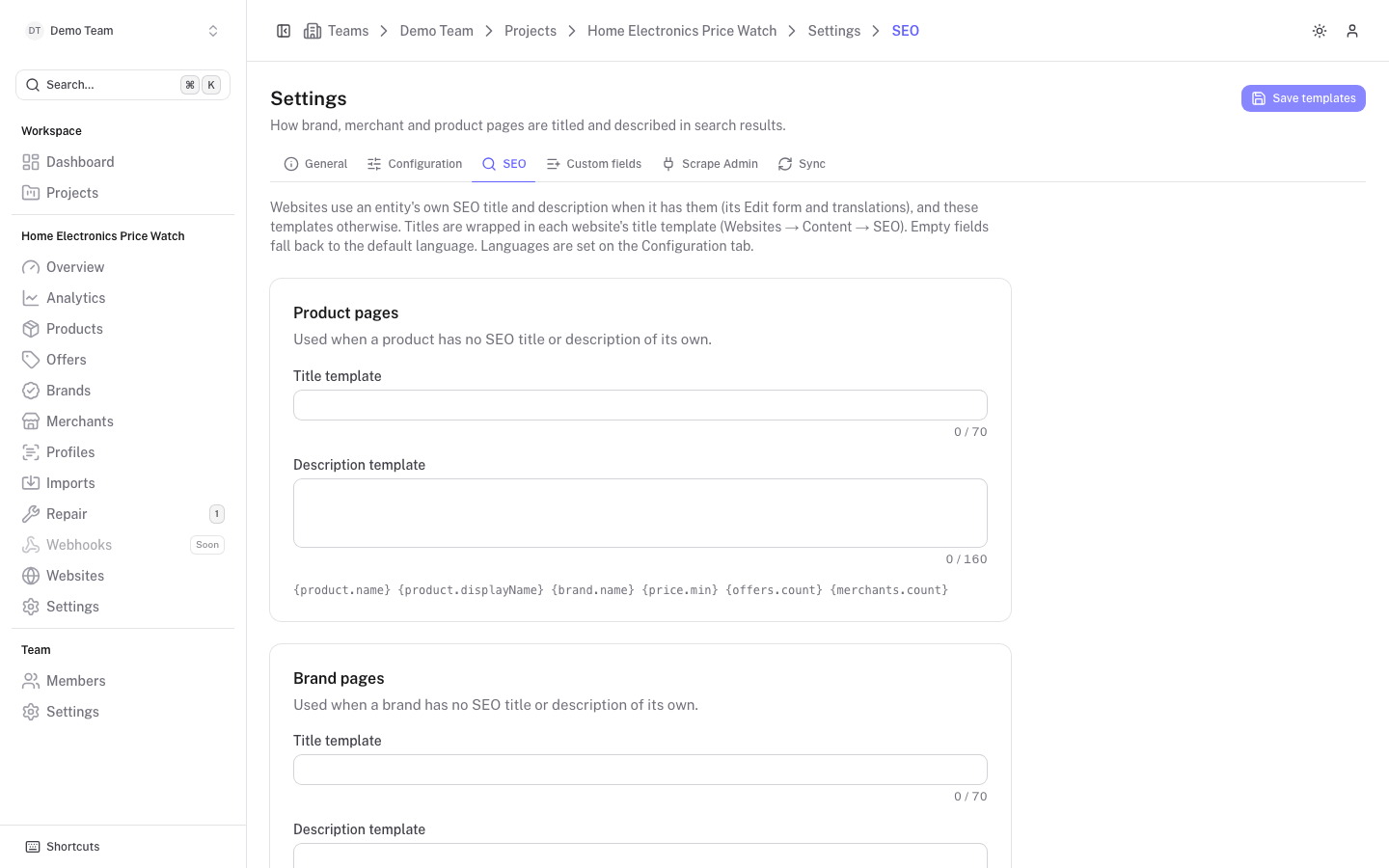
SEO templates give every product, brand and merchant page a title and meta description without writing them one by one. Websites receive the finished text in the seo field of each detail response. Open Settings in the project sidebar and choose the SEO tab.
How a page gets its SEO text
For each page the platform uses the first of these that has a value, separately for the title and the description:
- The entity's own SEO title or description, in the language being served. Set these on the product, brand or merchant, in its SEO panel (SEO title, SEO description), where you can also translate them.
- The project's template for that type of page and language, filled in with the entity's values.
- Nothing. The response has
nulland the website uses its own text.
The same panel has Hide from search engines. Websites mark such a page noindex and leave it out of their sitemap.
Titles are then wrapped in the website's title template, which is set under Website content.
Write the templates
The tab has three cards: Product pages, Brand pages and Merchant pages. Each has a Title template and a Description template. Click Save templates (top right) when you are done. Only owners and admins can edit.
A template is plain text with placeholders in curly braces. Placeholders without a value are left out, together with separators they leave behind, such as empty brackets or a dangling dash. A placeholder name the card does not support is shown as an error ("Unknown placeholder") and the template cannot be used until you fix it.
The counters under each field (70 for titles, 160 for descriptions) are recommended lengths; search engines cut longer texts. A live Example below each card shows the result with sample values.
Placeholders
| Page type | Placeholders |
|---|---|
| Product | {product.name}, {product.displayName}, {brand.name}, {price.min}, {offers.count}, {merchants.count} |
| Brand | {brand.name}, {products.count}, {price.min}, {merchants.count} |
| Merchant | {merchant.name}, {merchant.host}, {products.count}, {price.min} |
{product.displayName} is the product name in the project's product name format (brand included by default), while {product.name} is the bare name. {price.min} is the lowest price formatted in the website's currency and the served language.
Example for product pages:
Compare {product.displayName} prices from {price.min}
Description example:
Find the lowest price on {product.displayName}. {offers.count} offers from {merchants.count} shops.
Languages
If the project has additional languages, a tab per language appears above the cards, with the default marked (default). Languages are set under Settings > Configuration.
A template field left empty in a language falls back to the default language: the greyed placeholder shows what will be used. Fallback goes by field, so you can translate the title and leave the description in the default language. For a locale such as nb-NO the lookup order is nb-NO, then nb, then the default.