Products
A product is the thing you compare, such as a pair of headphones or a monitor. Each product collects the offers (shop listings) that sell it, and the platform shows the lowest price across them. Open Products in the project sidebar to see them all. For how products relate to offers, brands and merchants, see Concepts.
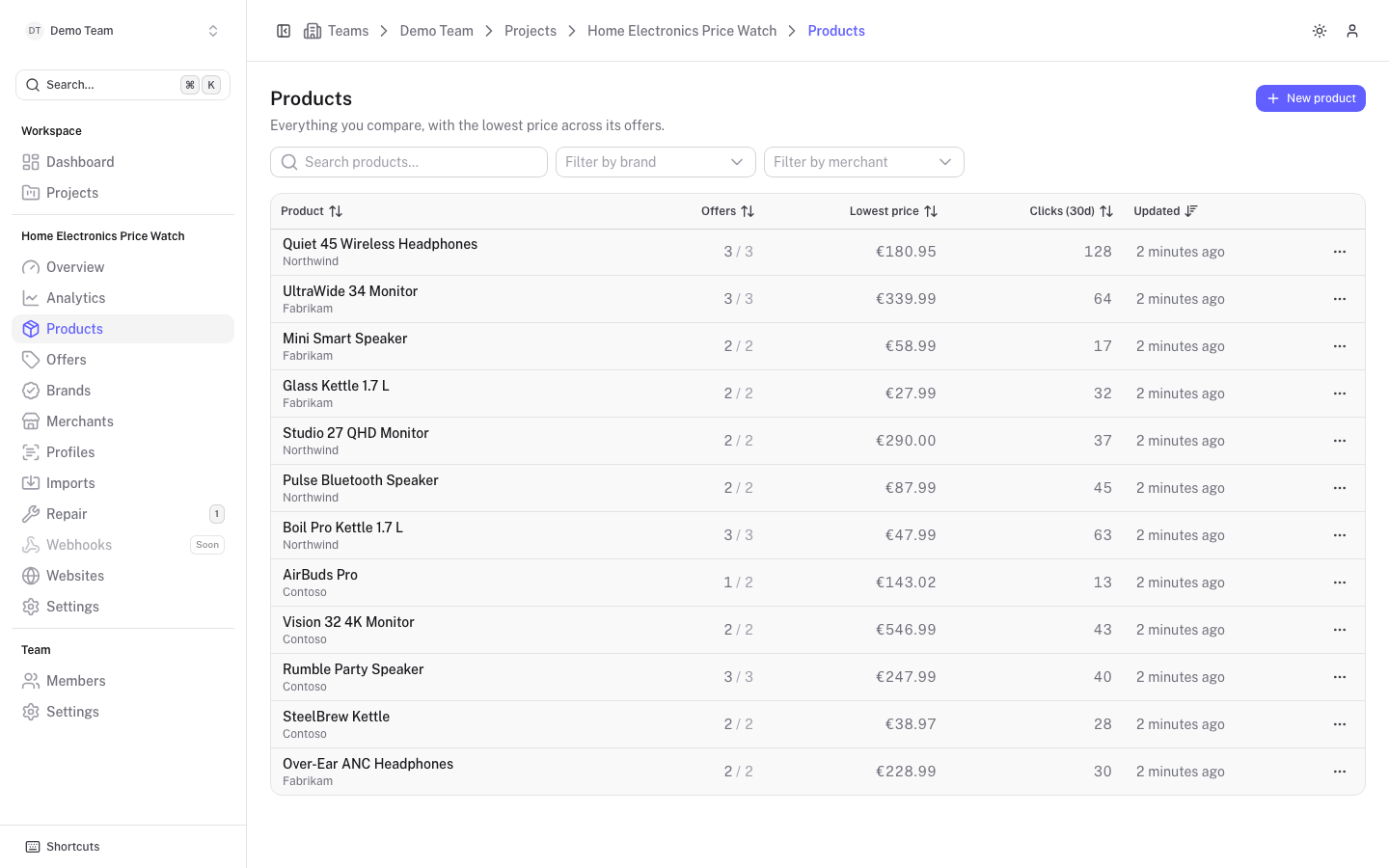
The product list
The table has these columns: Product (name with its brand underneath), Offers, Lowest price, Clicks (30d) and Updated. Click a column header to sort by it. Offers are shown as "active / total", for example 1 / 2.
Use the toolbar above the table to narrow the list:
- Search products... searches by text.
- Filter by brand and Filter by merchant limit the list to one brand or one shop. Both can be combined with the search. Use Clear filters to reset them.
The ... menu at the end of a row offers Open, Quick view (a side panel, with an Open product button), and, if you can edit, Edit and Add offer. Delete is only shown to project admins.
Create a product
Click New product
The button is at the top right of the list. You need write access to see it.
Fill in the form
Choose a Brand (search for one, or create it on the spot), type the Name, and optionally add a Description. The Slug is generated from the brand and name until you edit it yourself.
Click Create product
You land on the new product's page.
You can also paste a product URL into the Name field. The form then checks whether that URL is already tracked and shows the product and shop that use it. If it is new, the URL is added as the first offer once the product exists. To add many products from URLs at once, see Imports.
The product page
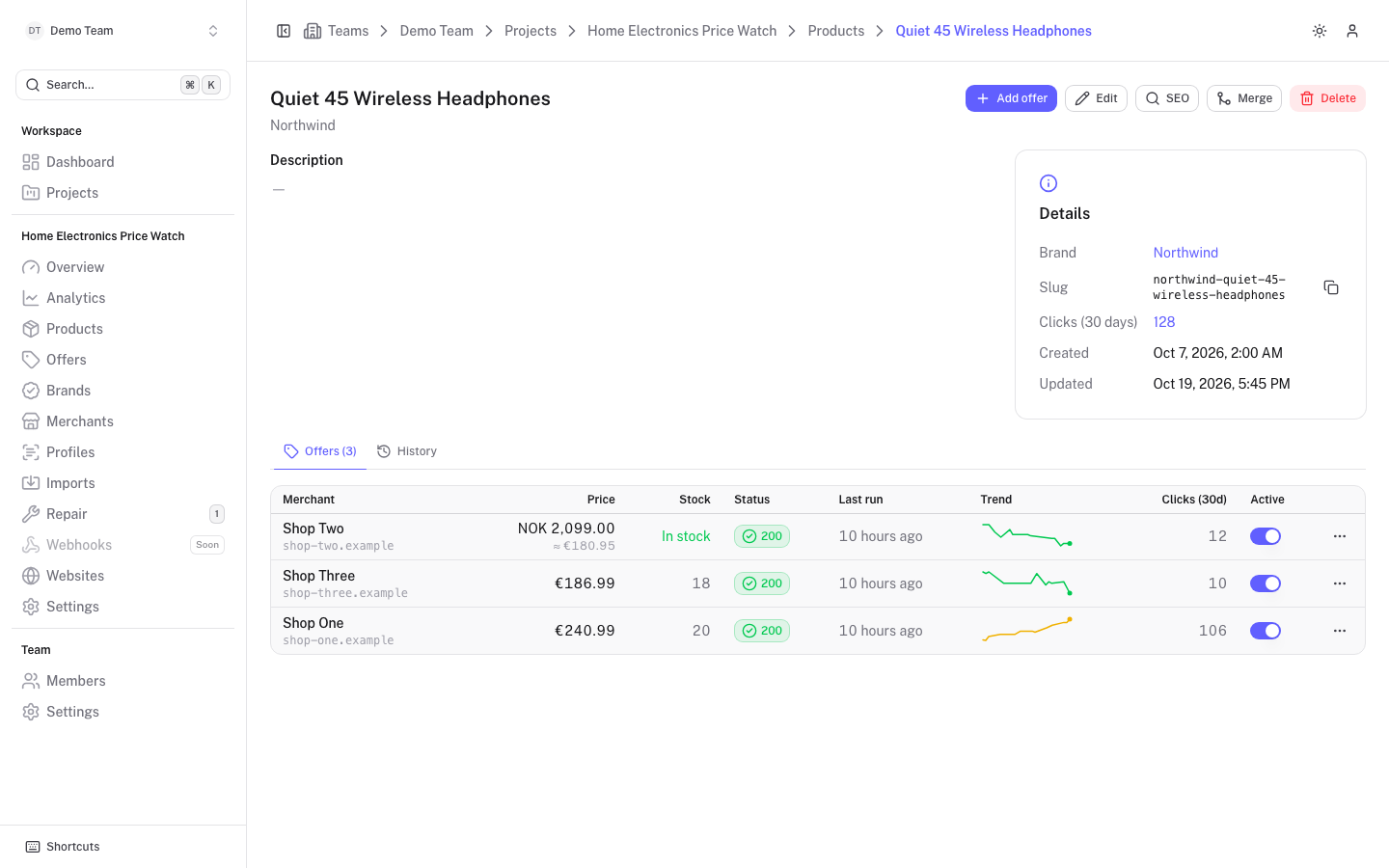
The top of the page shows the Description and a Details card with the brand, slug, clicks in the last 30 days, and created and updated times. An Important note or a deprecation notice appears above it when one is set.
Below, the page has two tabs:
- Offers lists every shop offer for the product with merchant, price, stock, status, last run, a price trend, clicks and an Active switch. Click a row to open the offer, see Offers. If all offers are inactive, the page warns that the product has no price.
- History lists changes made to the product (when, action, who, and what changed). Click an entry for details.
Custom fields for the product are shown between the details and the tabs, see Custom attributes.
The buttons at the top right are Add offer, Edit, SEO (see SEO templates) and, for project admins, Merge and Delete. When the project is connected to Scrape Admin, extra sync actions for the product's offers are shown as well, see Sync and reconcile.
Merge duplicates
If the same product exists twice, merge one into the other. Merging needs admin access. Open the product you want to get rid of and click Merge. A four-step dialog guides you:
- Destination: pick the product that remains under Merge into.
- Fields: for Name, Brand and Description, keep the destination's value or use this product's.
- Offers: review what happens to each offer. An offer from a shop the destination does not have yet is Moved. If the destination already has an offer from the same shop, the offers are Merged into the destination's one: empty price and stock values are filled in and the price history is moved over.
- Confirm: click Merge products.
The price history, change history and click counts move to the destination, the merged product is deleted, and you are taken to the destination product's page. This cannot be undone.
Delete a product
Admins can delete a product from its page or from the ... menu in the list. If the product has offers, they are deleted too, together with their price history, and you must type the product name to confirm. Click Delete product to finish.