Brands
A brand is the manufacturer of your products, for example Northwind or Contoso. Products point to one brand, and brands group them on the websites you publish. Open Brands in the project sidebar to manage them.
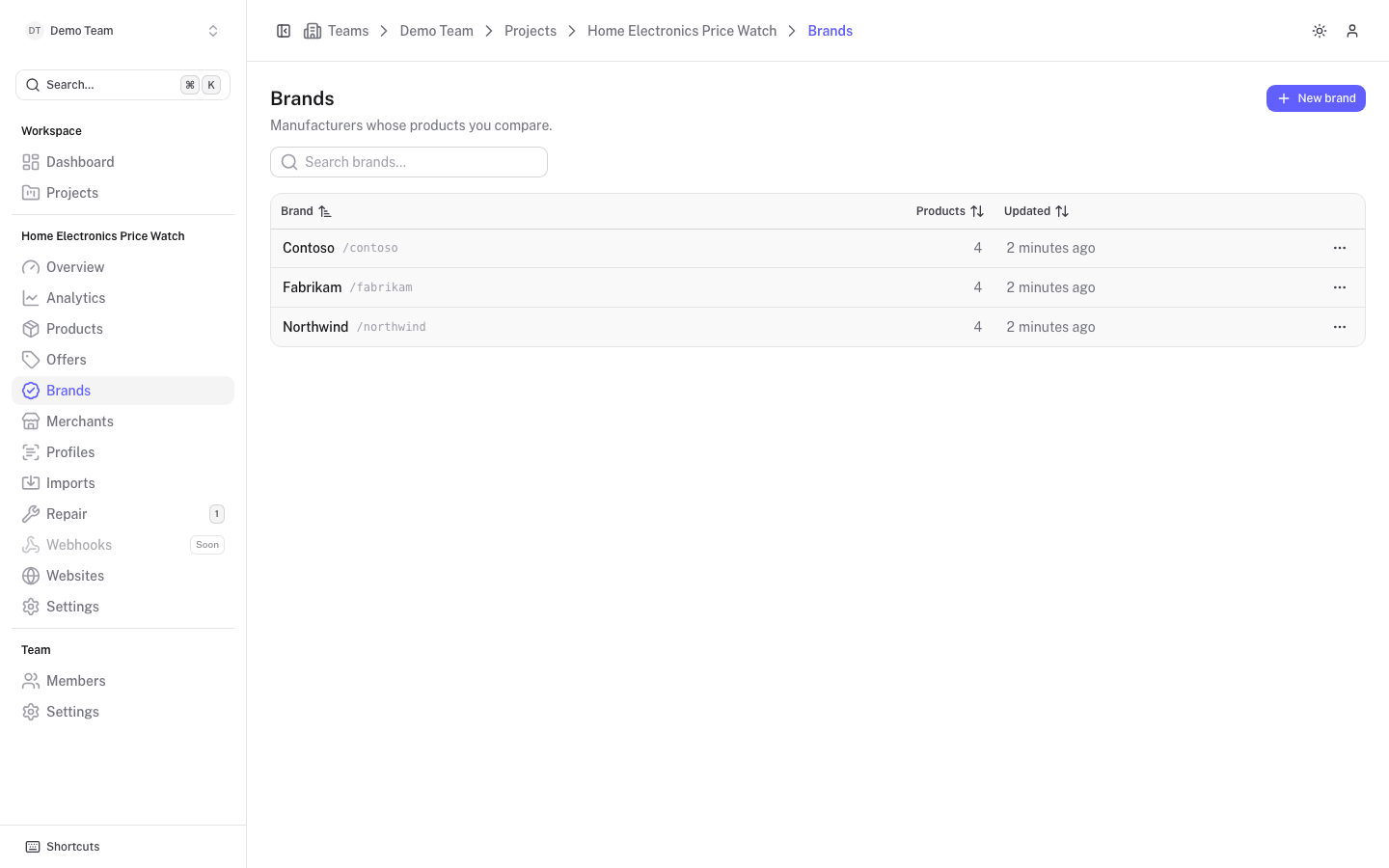
The brand list
The table shows the Brand (with its slug next to the name), the number of Products and when it was Updated. Sort by any of the three columns and use Search brands... to find one. Deprecated brands carry a Deprecated badge.
The ... menu on a row has Open, and for people with write access Edit. Project admins also get Merge into... and Delete.
Create a brand
Click New brand, fill in the form and click Create brand. The fields are:
- Name (required).
- Slug, the URL-friendly name. Leave it empty to have one generated.
- Description, Internal note (only visible to team members) and Red note (a highlighted warning shown wherever the brand is used).
You can also create a brand while creating a product: the brand picker in the new-product form has a Create brand option, see Products.
The brand page
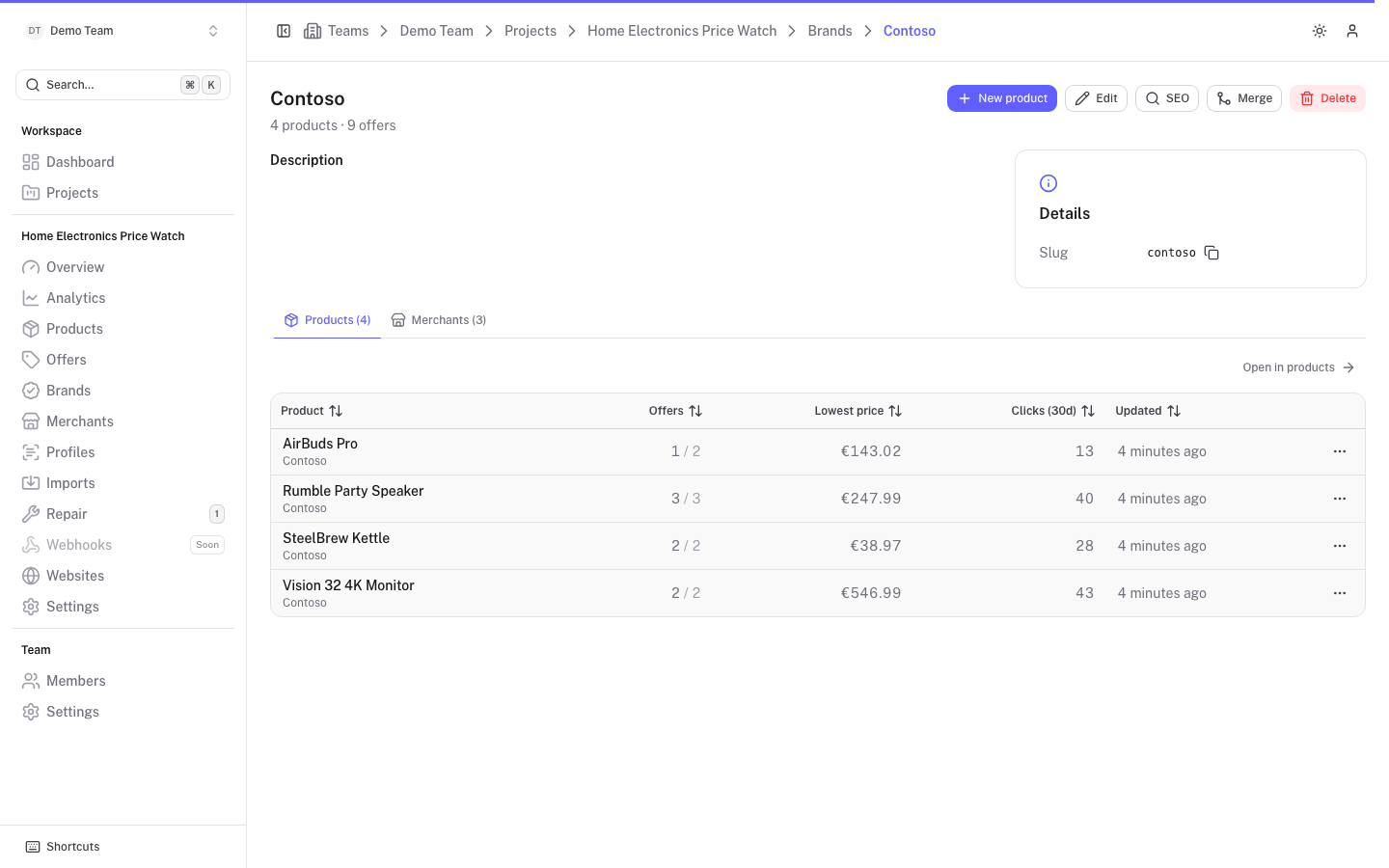
The header shows the number of products and offers. Below it are the description, a Details card with the slug, and any custom attributes. Two tabs follow:
- Products lists the brand's products. Open in products jumps to the product list filtered by this brand.
- Merchants lists the shops that sell this brand, with product and offer counts.
The buttons at the top are New product (the brand is preselected), Edit, SEO (see SEO templates) and, for admins, Merge and Delete. When Scrape Admin is connected there are also sync actions for all the brand's offers, see Sync and reconcile. In Edit you can also mark a brand as Deprecated and give a Deprecation reason.
Merge brands
Use merge when two brands are really the same manufacturer, for example "Contoso" and "Contoso Inc". Merging needs admin access.
Open the brand to remove
Click Merge on its page, or Merge into... in the list menu.
Pick the destination
Choose the brand to keep under Merge into. A warning shows how many products will move.
Click Merge brands
All products move to the destination. If the destination has no description, notes or SEO texts of its own, it takes those of the merged brand. The merged brand is then deleted. This cannot be undone.
The change is also logged in the history of every product that moved.
Delete a brand
Admins can delete a brand from its page or from the list menu. The confirmation dialog is Delete brand.
Bulk delete empty brands
Brands that no product uses any more are collected in the Brands without products queue under Repair. Select several brands there and click Delete to remove them in one go. Brands that still have products are refused and reported. See Repair queues.