Members and roles
Members are the people who have access to a team. Each member has one role, and the role decides what they may see and change in every project of the team.
The members list
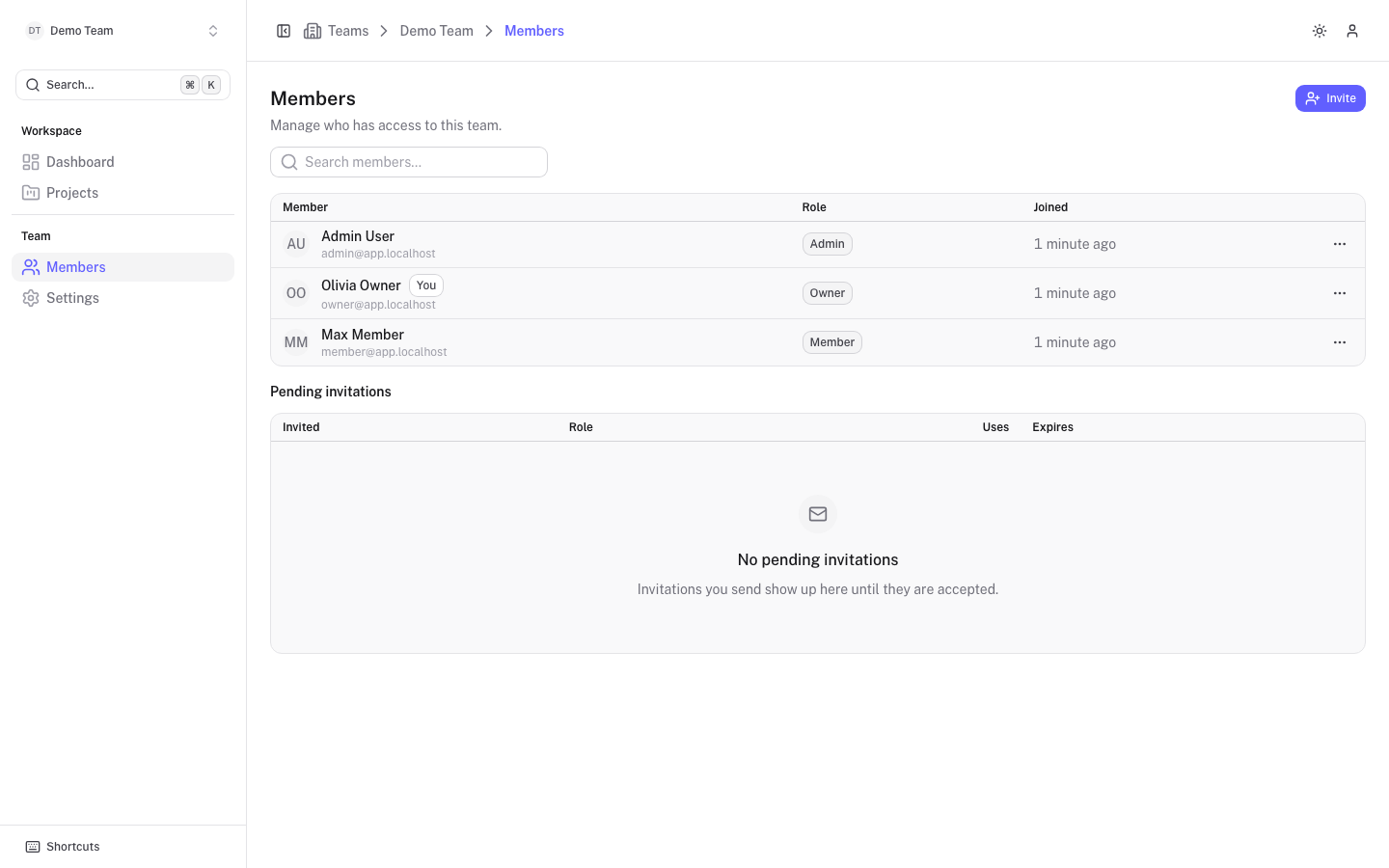
Open Members under Team in the sidebar. The table lists each member with their Role and when they Joined. You are marked You. Use Search members to filter by name or email.
Roles
| Role | What it may do |
|---|---|
| Read only | View everything in the team's projects. Cannot change anything. |
| Member | Everything a read-only member can, plus changing the catalogue: add and edit products, brands, merchants and offers, and work through imports and repairs. |
| Admin | Everything a member can, plus create projects, change project settings, connect Scrape Admin, manage scrape profiles, custom fields and websites, delete or merge catalogue items, and invite and manage members. |
| Owner | Everything an admin can, plus rename the team, delete the team, delete projects and grant or revoke the owner role. |
Rules to keep in mind:
- You can only give a role up to your own. Only owners can grant or remove the Owner role.
- A team always keeps at least one owner. The last owner cannot be demoted, removed or leave.
- Anyone can leave a team themselves. Admins and owners can remove other members, but not someone with a higher role.
Invite someone
Only admins and owners see the Invite button.
To invite someone by email:
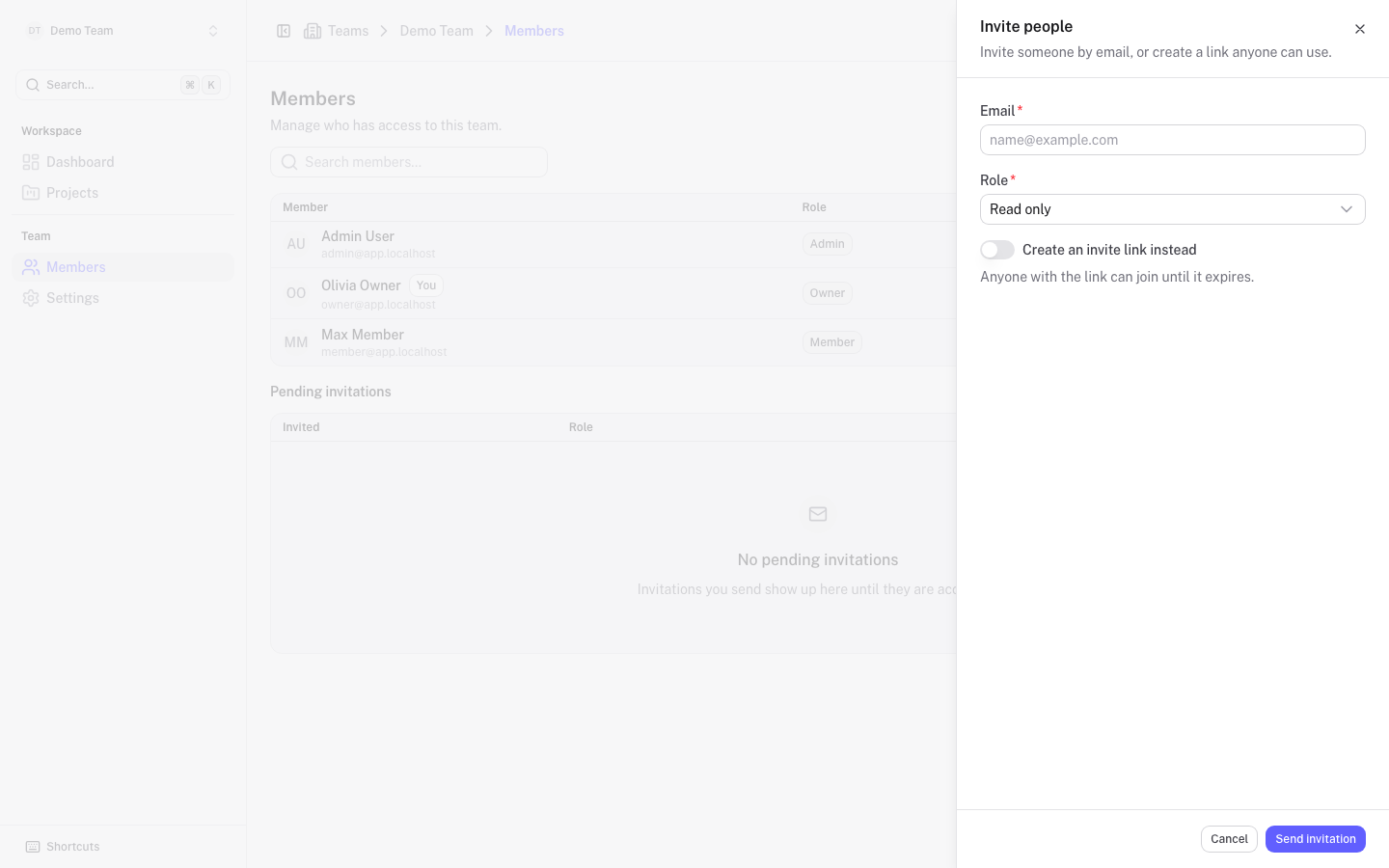
- Select Invite.
- Enter their Email.
- Pick a Role. The default is Read only.
- Select Send invitation.
The person receives an email with a link to accept. The invitation is tied to that address, can be used once and is valid for 7 days. The link is also copied to your clipboard, so you can send it yourself.
To invite with a link instead:
- Select Invite and switch on Create an invite link instead.
- Pick a Role and set the Maximum number of uses.
- Select Create link. The link is copied to your clipboard.
Anyone with the link can join until it expires or reaches its maximum number of uses.
Pending invitations
Admins and owners see Pending invitations below the members table. It lists who was invited, the role, the number of Uses and when it Expires. Use the row's ... menu to Copy invite link or Revoke an invitation before it is accepted.
Change a role or remove a member
Use the ... menu at the end of a member's row. It offers Copy email, Change role (admins and owners) and Remove member. On your own row, the last option reads Leave team. A removed person loses access to the team straight away.