Imports
An import list lets you add many product URLs in one go. Each URL is matched to a merchant, checked for duplicates and scraped with the merchant's profile. Nothing becomes an offer until you review it: accepting an item creates the offer, and rejecting it throws the URL away.
Open Imports in the project sidebar. The page has two tabs, Lists and Review messages.
Create a list
Open the form
Click New list (top right, or press the create shortcut on the page). You need write access to the project.
Name the list
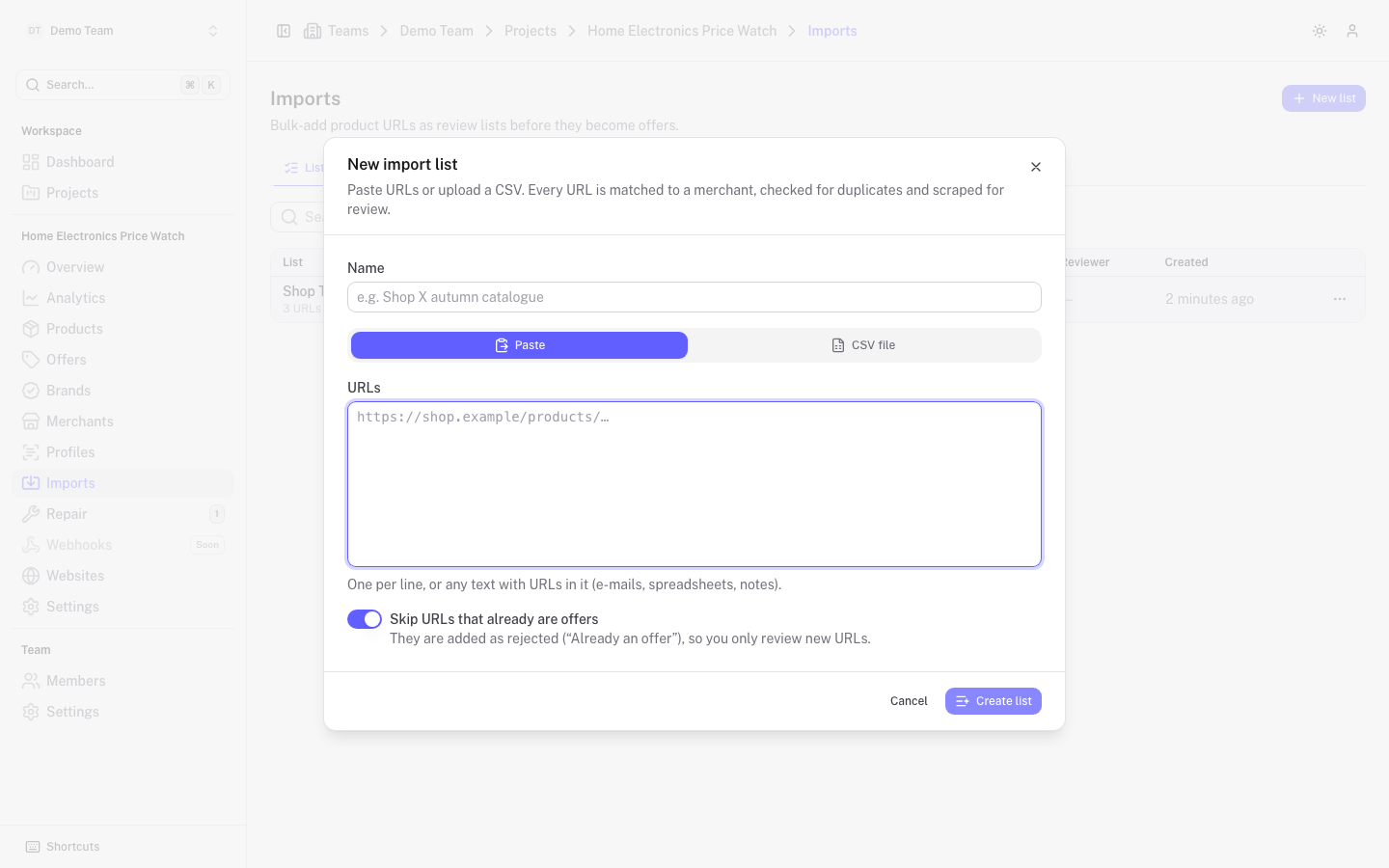
Give it a Name, for example "Shop X autumn catalogue". If you leave it empty, a name with the date and time is generated.
Add the URLs
Choose one of two sources:
- Paste: paste one URL per line, or any text that contains URLs (e-mails, spreadsheets, notes). URLs are picked out of the text.
- CSV file: drop a CSV, TSV or TXT file. The column with URLs is detected automatically; if there is more than one candidate, choose the right one in URL column.
Check the summary
Below the input the form shows how many URLs were found, how many duplicates were removed, and the hosts they belong to. Each host shows the merchant it matches. Two warnings are worth reading:
- URLs have no merchant: they are added with a flag. Assign a merchant while reviewing, or create the merchant first and they match on the next check.
- URLs will not be checked: the merchant has no scrape profile, so there is no name or price to review. Add a profile to the merchant to check them.
Create the list
Click Create list. The URLs are uploaded and you land on the list detail page.
www, tracking parameters) counts as one URL.Skip URLs that already are offers
The switch Skip URLs that already are offers is on by default. URLs that already exist as an offer in the project are added as rejected with the reason "Already an offer", so you only review new URLs. Turn it off if you want them to appear in the review as flagged items instead.
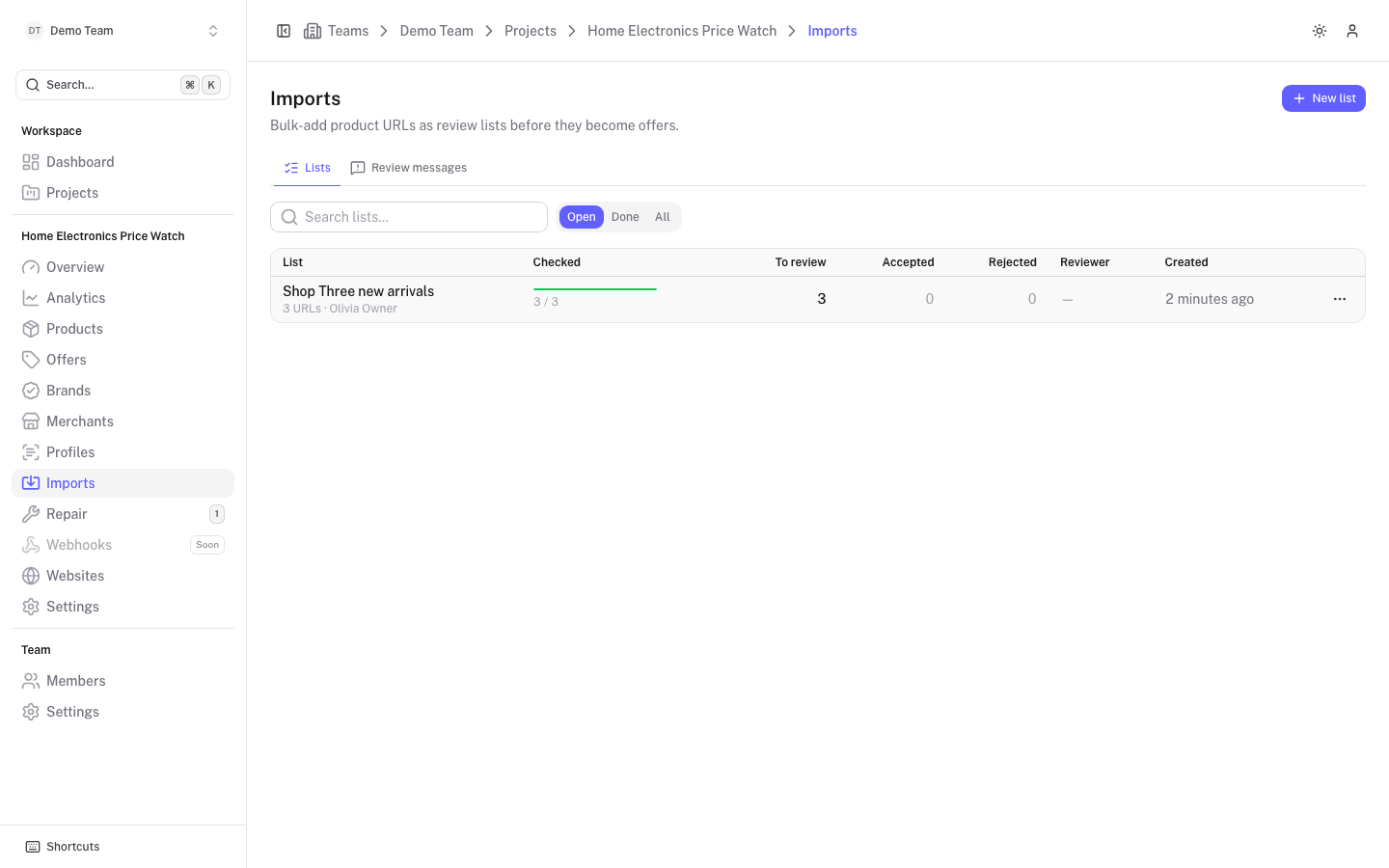
The lists overview
The Lists tab shows every list with its progress:
| Column | Meaning |
|---|---|
| List | Name, number of URLs and who created it. |
| Checked | How many URLs have been scraped so far. |
| To review | Items still waiting for a decision. A red badge shows how many of them are flagged. |
| Accepted / Rejected | Items already decided. |
| Reviewer | Who is reviewing the list right now, or Done when it is finished. |
| Created | When the list was created. |
Filter with Open, Done or All, or search by name. The row menu has Open, Review one by one and Delete. Deleting a list does not remove offers that were already created from it.
List detail
Opening a list starts the checker. A bar at the top shows how many URLs have been scraped, with Retry failed when some checks failed. The checker runs while the page is open, so keep it open until the bar says nothing is left to check.
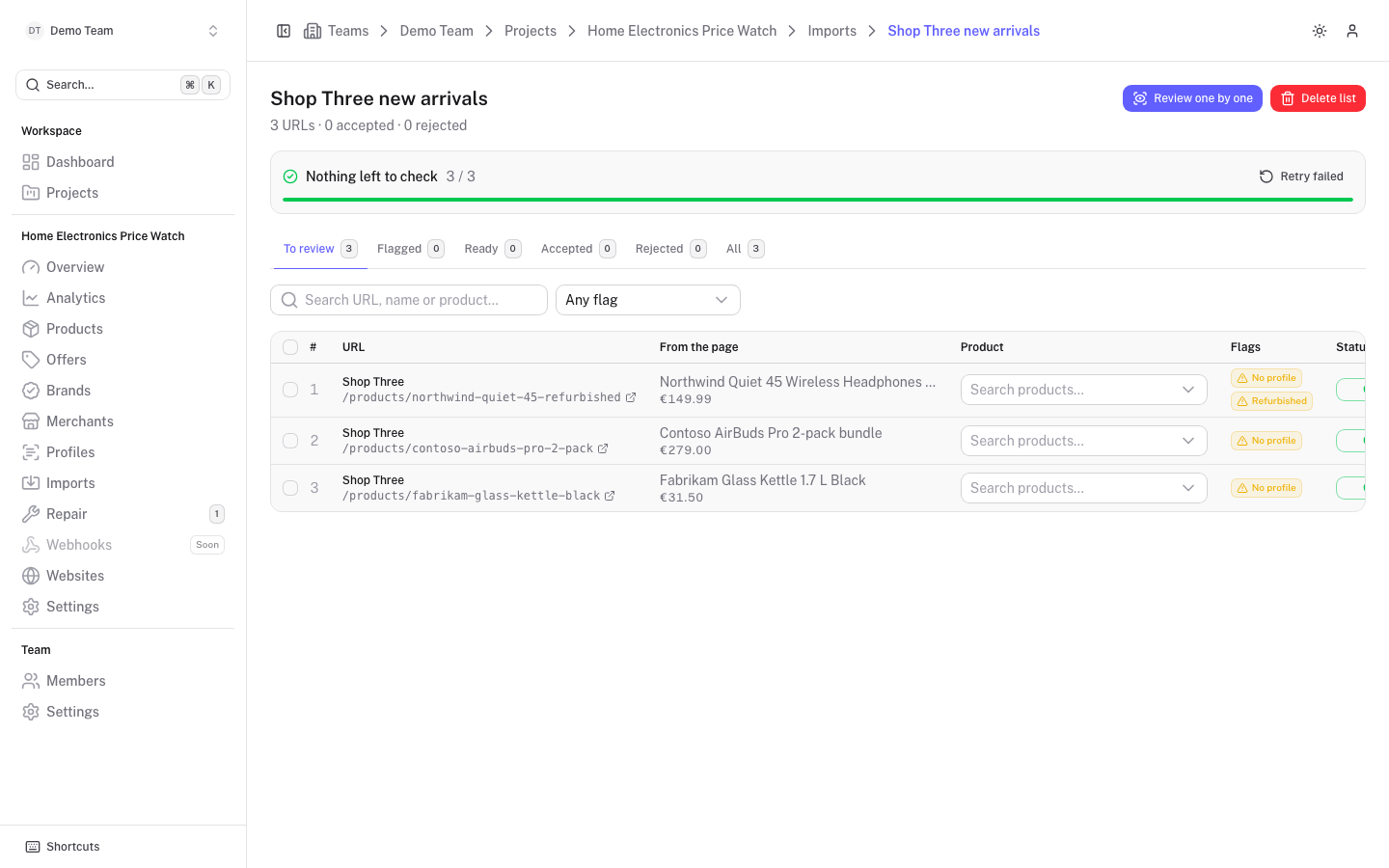
The tabs split the items:
| Tab | Contains |
|---|---|
| To review | Everything pending. |
| Flagged | Pending items with a blocking flag. |
| Ready | Checked items that have a product and no blocking flag. |
| Accepted / Rejected | Decided items. |
| All | Every item. |
Search by URL, scraped name or product, or filter with Any flag. In the table you can pick a product for each item directly. Select rows to get a bulk bar with:
- Accept: creates an offer for each selected item.
- Accept, creating N products: items without a product get a new product named after the scraped name.
- Replace URLs of N existing offers: for items where the merchant already has an offer for the chosen product, update that offer instead (see below).
- Reject, Reopen (for rejected items) and Refresh (runs the merchant profile again, for example after you fixed the profile).
- More: Set merchant… and Set product… for all selected items.
On the Ready tab, Accept all N ready accepts everything that is ready after a confirmation. Bulk accepts run in chunks of 20 items, because each accepted item also creates its entry in Scrape Admin.
Flags
Flags tell you why an item needs attention. A blocking flag stops an accept; a warning needs a look; info is a hint.
| Flag | Severity | Meaning |
|---|---|---|
| Already an offer | Blocking | An offer with this URL already exists. |
| Duplicate in list | Blocking | The same URL appears earlier in this list. |
| No merchant | Blocking | No merchant matches the host. |
| Redirects to offer | Blocking | The page redirects to a URL that already is an offer. |
| Merchant has product | Blocking | The chosen product already has an offer from this merchant. |
| In another list | Warning | The same URL waits for review in another list. |
| No profile | Warning | The merchant has no scrape profile, so the URL was not checked. |
| Check failed | Warning | Running the merchant profile failed. |
| No name | Warning | The scrape returned no product name. |
| No price | Warning | The scrape returned no price (or 0). |
| Similar product | Info | Existing products look like this one; pick one instead of creating a new product. |
Admins can accept an item despite blocking flags with More > Accept despite flags. Everyone else must reject the item or fix the cause (change merchant or product).
Review screen
Review one by one opens a focused screen for one item at a time. The left side shows the item: its position, merchant, URL, the scraped name and price, any flags and review messages, possible duplicates (links to the existing offers or items), and the scraped attributes. The right side is the decision.
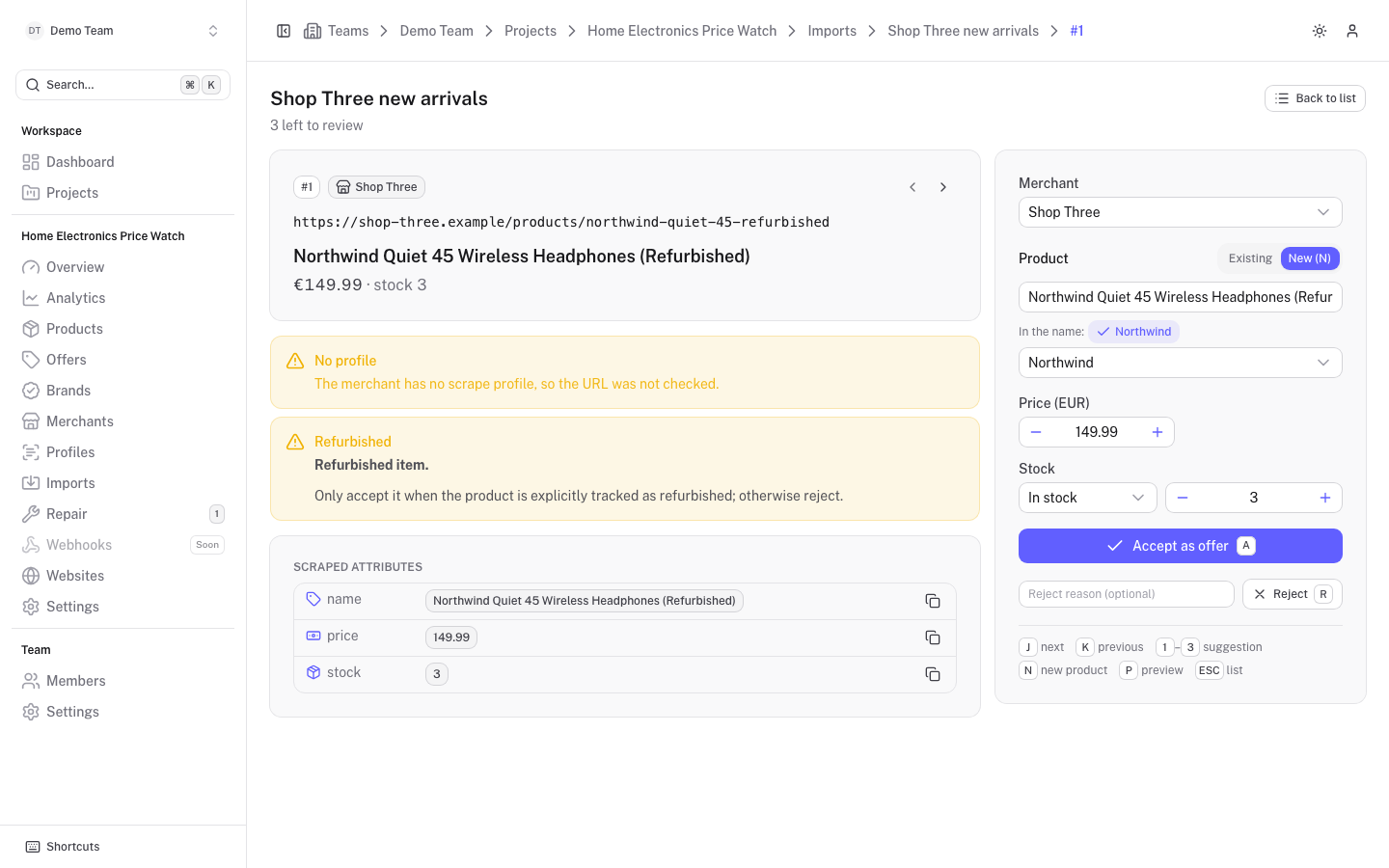
On the right you set:
- Merchant: the matched merchant; change it if the host was wrong.
- Product: choose Existing (search, or pick one of the numbered suggestions) or New to create a product from the scraped name. Brands found in the scraped name are suggested for a new product.
- Price and Stock: prefilled from the scrape, editable.
Then decide:
- Accept as offer creates the offer. If you chose New, the product (and brand) is created first. The offer starts being tracked in Scrape Admin.
- Reject discards the item. You can give an optional Reject reason. Rejected items can be reopened from the list.
- Replace offer URL appears instead of Accept when the merchant already sells the chosen product ("The merchant already sells this product"). Use it when the merchant moved the page: the existing offer gets the new URL, price and stock instead of a second offer being created.
Keyboard shortcuts on the screen:
| Key | Action |
|---|---|
A | Accept (or replace the URL) |
R | Reject |
J / K | Next / previous item |
1 to 3 | Pick a suggested product |
N | Create a new product |
P | Preview the selected product |
Shift R | Refresh the item (when it has a profile) |
Esc | Back to the list |
When someone else is reviewing the same list, a banner tells you who. You can still work on it, or use Take over. A review lock lasts 60 minutes without activity.
Review messages
The Review messages tab holds house rules shown to reviewers. A message has conditions on an item and a text; whenever an item matches every condition, the text appears on the item in the review screen, for example "refurbished items go to the B-stock product".
Only project admins can create, edit or delete messages. Click New message and fill in:
- Name.
- Conditions: pick a field (Scraped name, URL, Host, Merchant (slug), Brand, Product or Price (cents)), a mode (matches any of, matches all of, matches none of) and one regular expression per line. Matching is case-insensitive. Add several conditions with Add condition.
- Message (markdown): the text reviewers see.
- Flag matching items (optional): also raises a custom flag on pending items that match, with a Flag label (badge text, defaults to the name) and a Severity. Blocking moves items to Flagged and accepting needs an admin override, Warning shows a badge and the item stays in review, Info is a hint in the item detail only. Items are re-flagged when you save.
A message without conditions is never shown.