Quick start
This walkthrough takes you from a first sign-in to a project with live prices and a website that can read them. Each step links to the page with the details.
Sign in
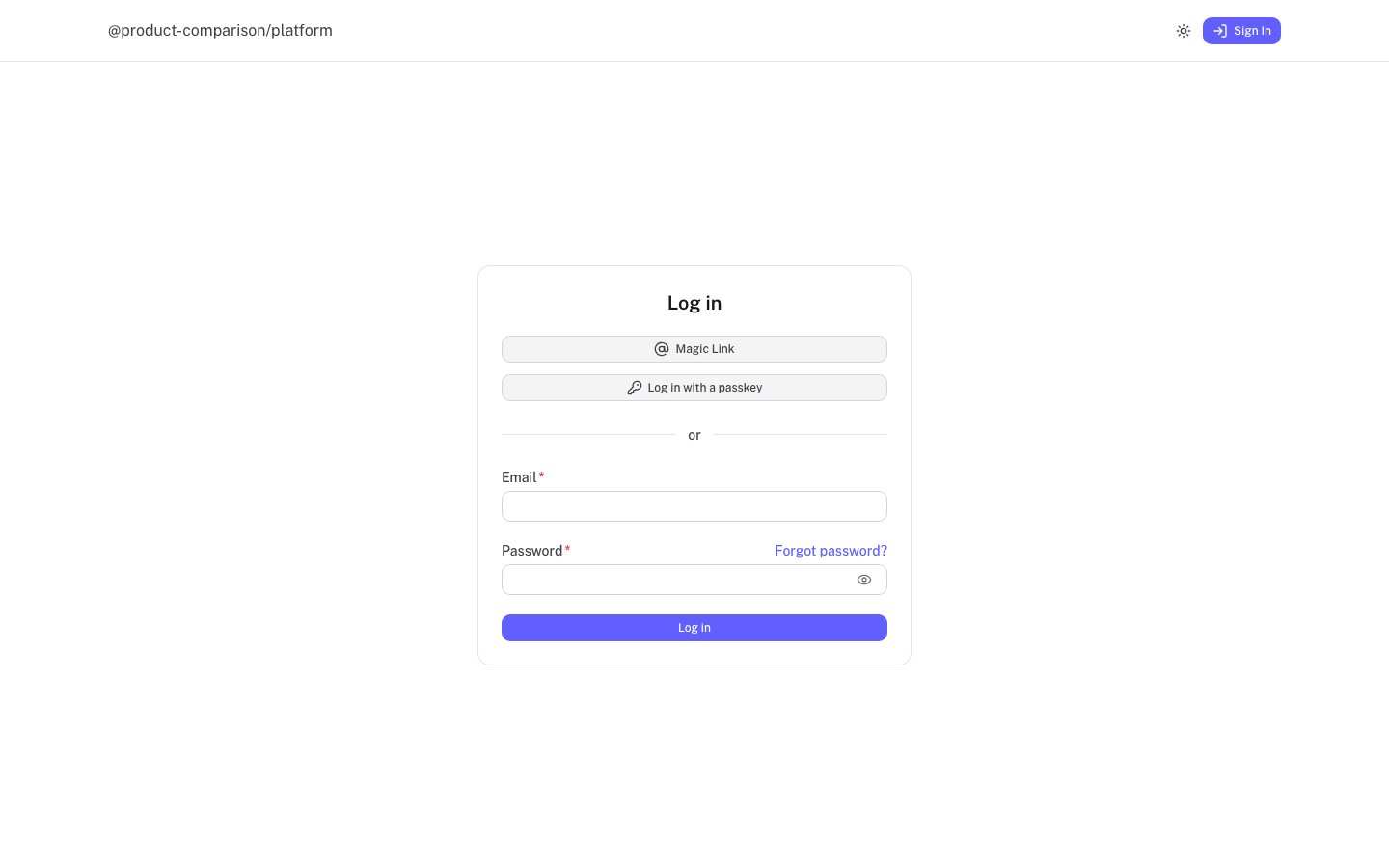
Open the platform and log in with your email and password, a magic link or a passkey. There is no public sign-up page, so ask a team owner or admin for an invitation if you do not have an account yet. See Account.
Create or pick a team
If you belong to a team, you land on its dashboard. Otherwise create one with New team. Use the team switcher at the top of the sidebar to change team. See Teams.
Create a project
Under Projects, select New project, give it a name and select Create project. Creating a project needs the Admin or Owner role. See Projects.
Connect Scrape Admin
In the project, open Settings, then the Scrape Admin tab and enter a Scrape Admin team API key. See Connect Scrape Admin.
Add a merchant and a scrape profile
Create a scrape profile under Profiles, then add a merchant under Merchants and link the profile to it. See Scrape profiles and Merchants.
Create your first import list
Under Imports, select New list, then paste product URLs or upload a CSV. See Imports.
Review and accept
Open the list and review each item. Accepting an item turns it into an offer. See Imports.
Create a website and copy its token
Under Websites, select Add website, enter the domain and create it. Copy the token straight away: it is shown only once. See Websites and Public API.