Repair queues
Repair collects catalogue problems that need a human decision. Each problem type is a queue with its own tab and a count badge. The sidebar shows the number of broken URLs on the Repair item, so you can see at a glance when there is work to do.
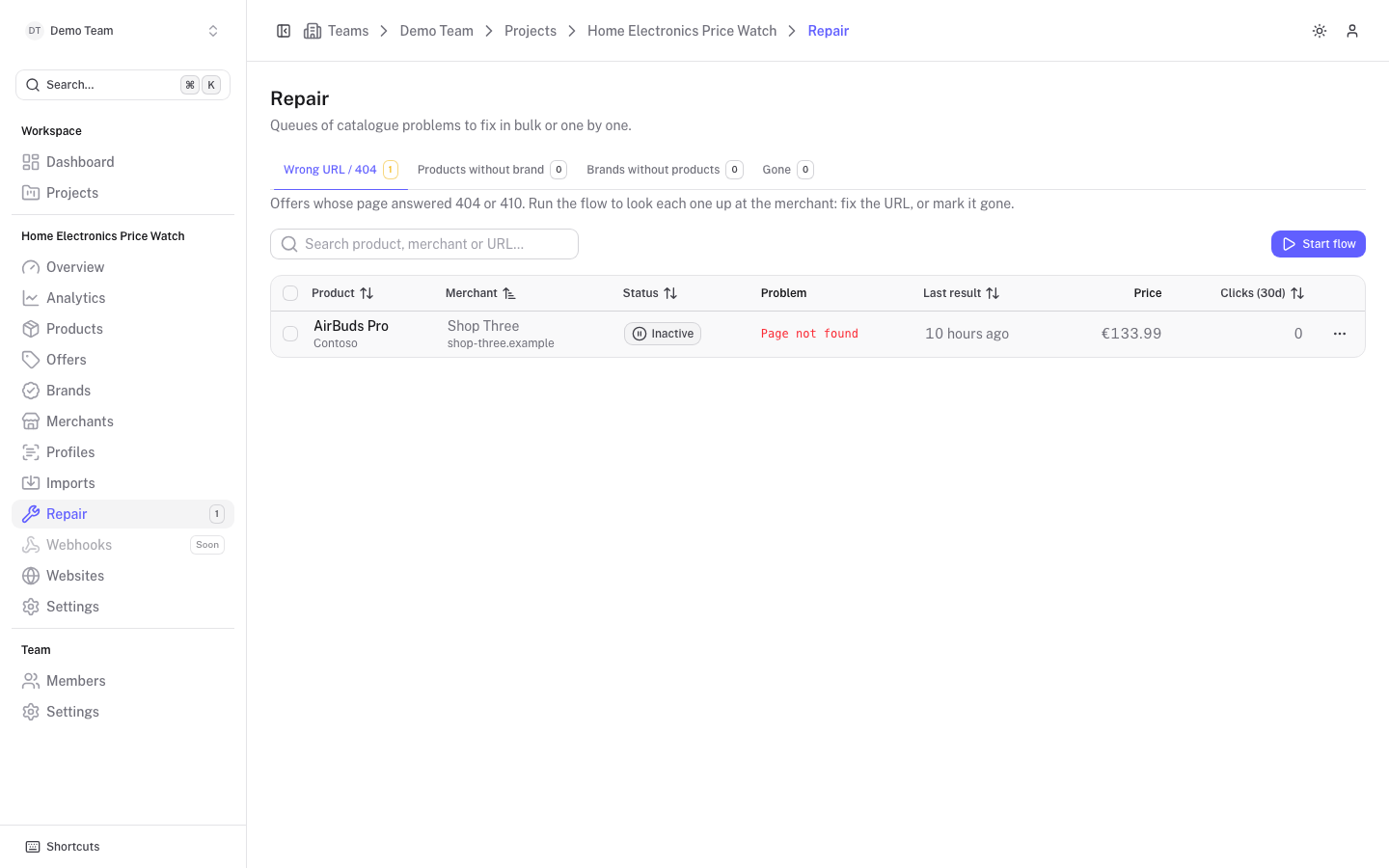
Every queue has a search box and supports row selection. Selecting rows and running bulk actions needs write access to the project. Without it you can browse the queues but not change anything.
Wrong URL / 404
Offers whose page answered 404 or 410 at the last scrape. The table shows the product and brand, the merchant, the status, the problem (for example "Page not found"), the time of the last result, the price and the clicks of the last 30 days. You can sort by merchant, status, last result and clicks.
Fix them in one of two ways:
- Start flow walks you through the offers one at a time: look the product up at the merchant, then save the new URL or mark the offer gone. Clicking a row opens the flow at that offer. See Wrong URL flow.
- Select rows for a bulk action:
- Mark gone: pauses the offers and removes them from the queues. They keep their price history. A confirmation is asked first.
- Refresh: scrapes the offers again, useful when the merchant fixed the page. When more offers are selected than one refresh can take, the button reads "Refresh first N". Refresh is only shown when scraping is available for the project.
Products without brand
Products that have no brand yet. The Found in the name column suggests brands that appear in the product name.
- Click a suggested brand on a row to set it on that product.
- Select rows and click Apply suggested (N) to set the first suggestion on every selected row that has one.
- Select rows, pick a brand in Set brand… and click Set to give all selected products the same brand.
Suggestions marked with the primary colour are exact matches. Products with no suggestion show a dash: open the product and set the brand there, or create the brand first in Brands.
Brands without products
Brands that no product uses any more, with a Deprecated badge on those that were deprecated. Select rows and click Delete to remove them. A confirmation warns that their slugs stop resolving on the websites. If you want a brand's address to keep working, open it instead and merge or deprecate it. See Brands.
Gone
Offers that were marked as no longer sold. They stay paused and keep their price history. When a product is back at the merchant, select the offers and click Restore to activate them again. Offers appear here after you mark them gone in the flow or in bulk from the first queue.